

Getting Started
2.1 Logging In
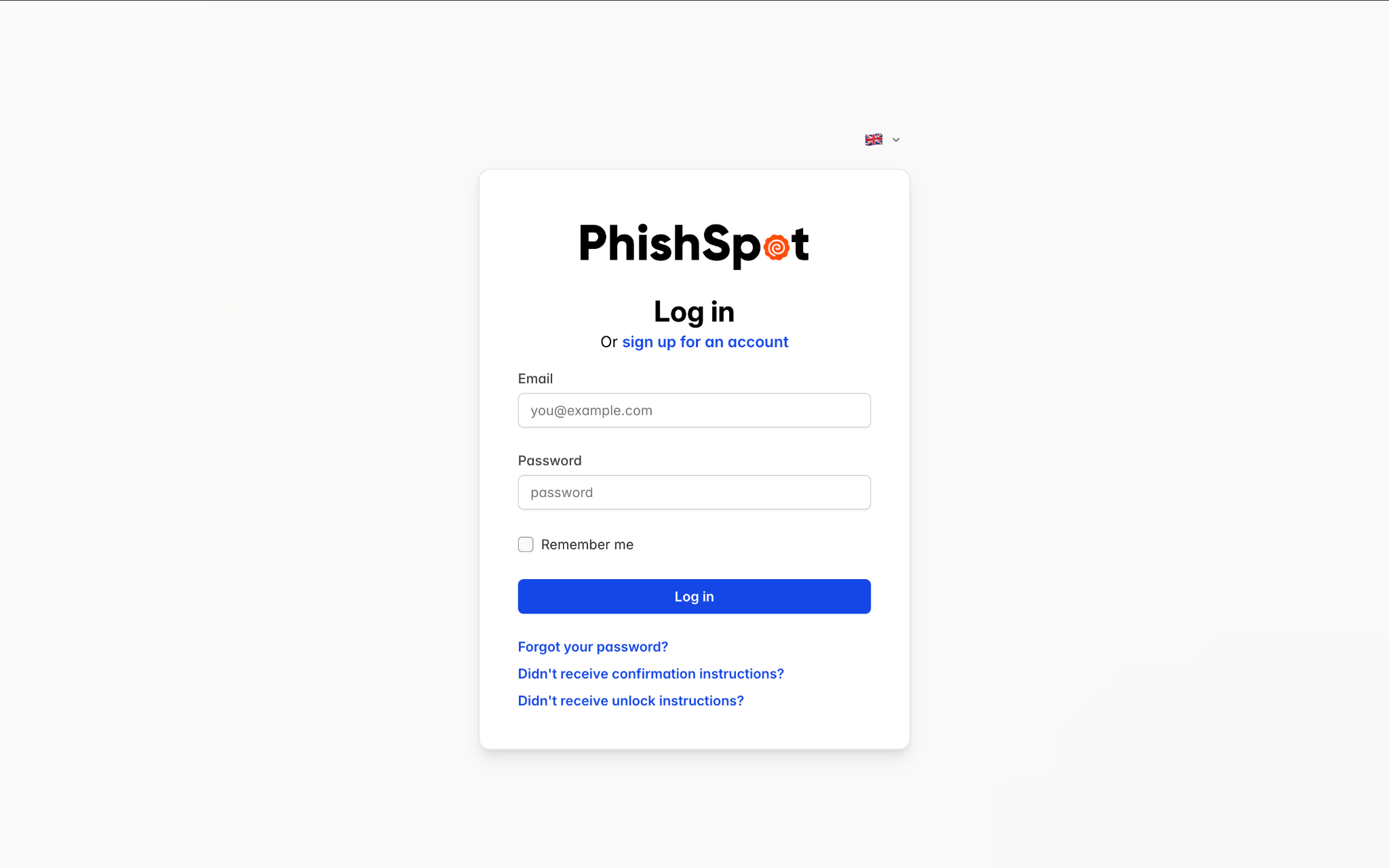
Section titled “2.1 Logging In”Navigate to your PhishSpot platform URL in your browser. Enter your email address and password on the login page and click the Sign In button.
If your organization has enabled two-factor authentication (2FA), you will be prompted to enter a verification code from your authenticator app after entering your password.
2.2 Platform Navigation
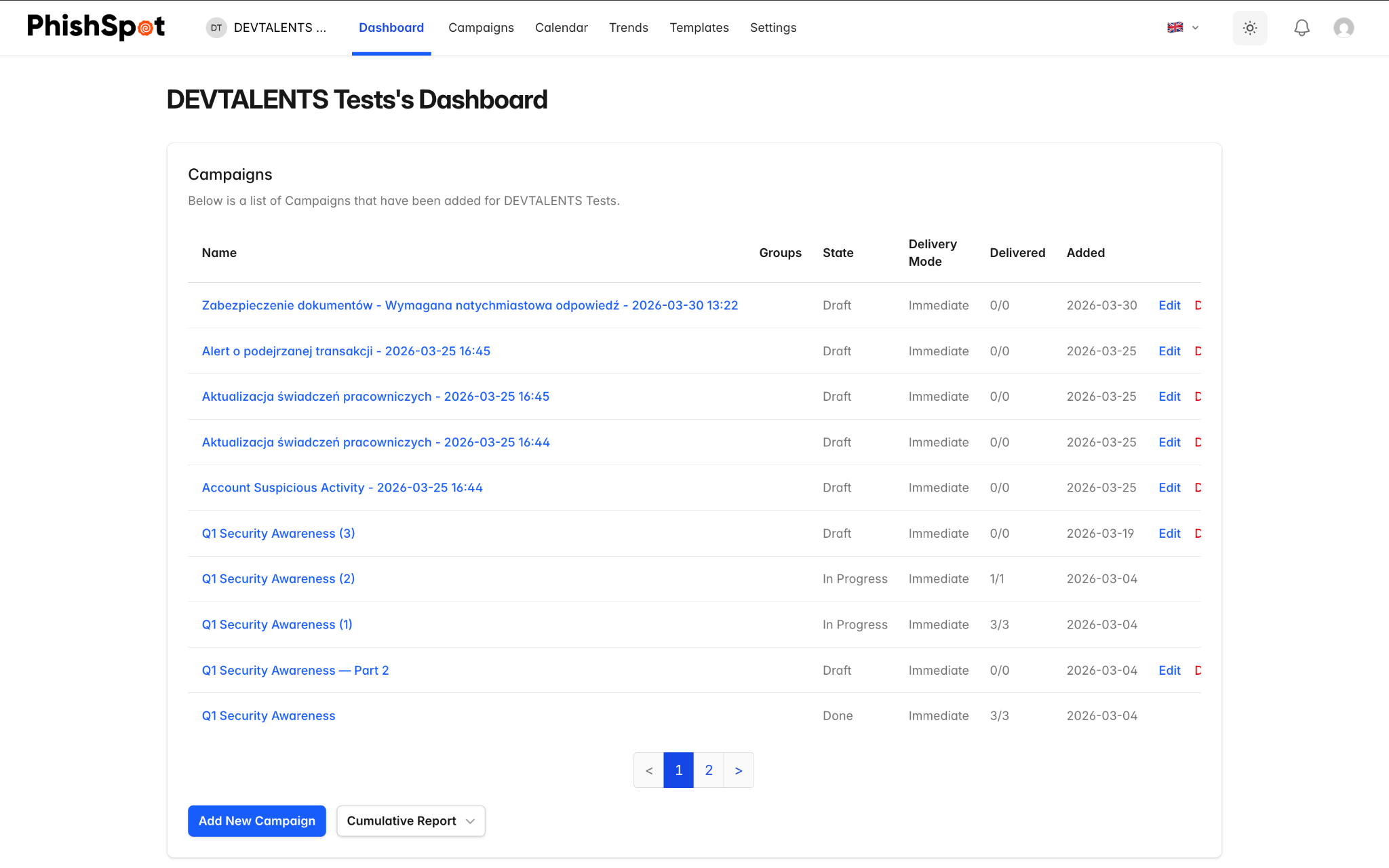
Section titled “2.2 Platform Navigation”After logging in, you will see the main dashboard. The platform uses a horizontal top navigation bar that appears on every page. The navigation bar contains:
-
Left side — PhishSpot logo (links to homepage) and the account/team switcher (shows your current team name).
-
Center — Main navigation links: Dashboard, Campaigns, Calendar, Trends, Templates, and Settings. The active page is highlighted with a blue underline.
-
Right side — Language switcher (flag icon), theme toggle (light/dark mode), notification bell, and your user avatar/profile menu.
2.3 Navigation Menu Structure
Section titled “2.3 Navigation Menu Structure”The top navigation bar contains the following main sections:
| Menu Item | Description |
|---|---|
| Dashboard | Overview of your account with recent campaigns and quick stats |
| Campaigns | Create, manage, and monitor phishing simulation campaigns |
| Campaign Calendar | Visual calendar view of scheduled and past campaigns |
| Trends | Historical trend data and analytics across all campaigns |
| Templates | Browse curated phishing templates and manage your custom templates |
| Settings | Expandable section containing: Contacts, Groups, Courses, Media, Domains, Platform Domains, Webhooks, Account Details, Team Members |

2.4 Switching Accounts
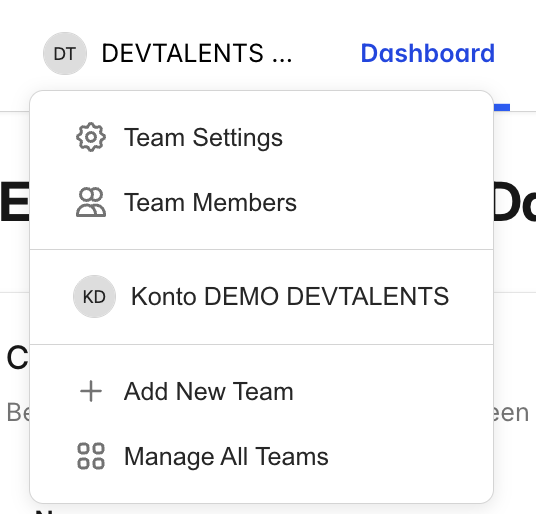
Section titled “2.4 Switching Accounts”If you belong to multiple teams or accounts, you can switch between them using the account switcher at the top of the sidebar. Click your current account name to see a dropdown of all accounts you have access to, then select the one you want to work with.
2.5 Notifications
Section titled “2.5 Notifications”The notification bell in the top-right corner shows a count of unread notifications. Click it to see a list of recent events such as campaign completions, new team member joins, or domain verification updates. Each notification links to the relevant item. You can mark all notifications as read using the link at the top of the notification panel.