

Directory Sync with Entra AD
When a company runs phishing simulations against 50, 500 or 5,000 employees, keeping the contact list current by hand isn’t viable. PhishSpot connects to Microsoft Entra ID (formerly Azure AD) and pulls users and groups directly from your directory. New hires show up, leavers get disabled, group membership reflects today’s org chart — without anyone editing a spreadsheet.
This chapter covers the integration setup, the sync schedule, what gets imported and how, manual syncs, and the history log you check when something looks off.
25.1 Why directory sync?
Section titled “25.1 Why directory sync?”The alternative is CSV imports (Chapter 5 Contacts covers the manual paths). Those are fine for proof-of-concept or one-shot pilots, but for production they get stale fast. Directory sync gives you:
- Authoritative source. Your IT team already maintains Entra. PhishSpot inherits that work — no parallel list to keep in sync.
- Automatic onboarding. A new hire whose Entra account is created today shows up in PhishSpot tomorrow morning (or sooner, depending on schedule), and immediately becomes a valid target for autopilot campaigns.
- Leavers handled cleanly. When IT disables an Entra account, the matching PhishSpot Contact is marked
disabled— it stays in the database for historical reporting, but autopilots stop targeting it. - Groups follow. Membership in “Engineering”, “Finance”, “Zarząd” — whatever you’ve defined in Entra — is mirrored into PhishSpot Groups, so autopilot audiences track org structure automatically.
If you also want users to sign in to their personal training portal with Microsoft, the same integration backs that flow — see Chapter 24 SSO with Microsoft 365.
25.2 Connecting Entra
Section titled “25.2 Connecting Entra”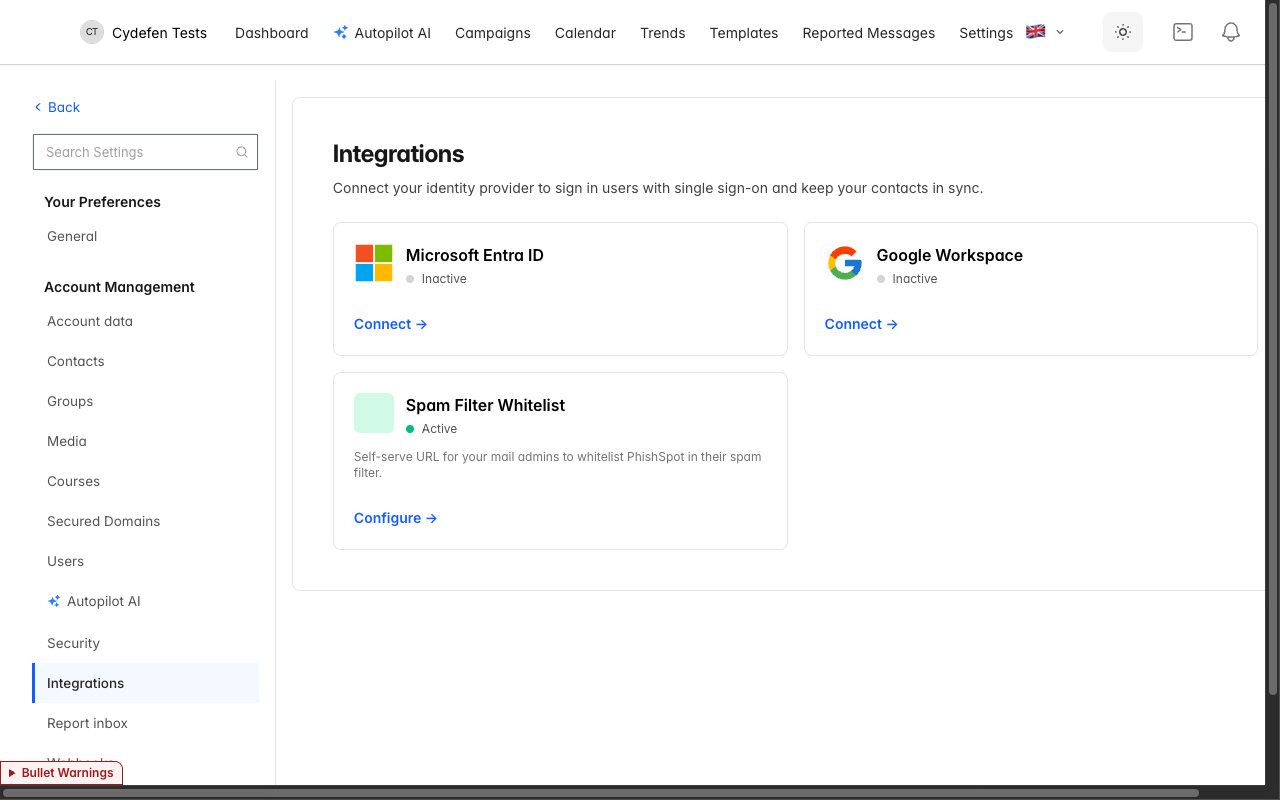
- Open Account settings → Integrations. You’ll see a grid of integration cards. Find the Microsoft Entra ID card; it shows a gray status dot (“inactive”) until connected.
- Click Connect to Microsoft. PhishSpot prompts you for your Entra tenant ID (a GUID, e.g.,
1f3a8d2e-...). You can find this in the Entra admin centre under “Properties”. - Submit. PhishSpot generates an HMAC-signed state token and redirects you to the Microsoft admin-consent screen at
login.microsoftonline.com/<tenant>/v2.0/adminconsent. You must be signed in as a Global Administrator in the target tenant — admin consent grants the PhishSpot enterprise application directory-read scopes on behalf of all users. - The consent screen lists the requested scopes:
User.Read.All— read user profiles (for the contact list).Group.Read.All— read group definitions. Configure these as application permissions on the app registration. The consent request useshttps://graph.microsoft.com/.default; it grants only the permissions configured there. SSO uses a separate delegated sign-in flow.
- Grant. Microsoft redirects back to PhishSpot’s callback endpoint with
admin_consent=True&tenant=<ID>&state=<HMAC>. PhishSpot verifies the HMAC, stores the tenant-scoped app token and turns the integration status to active.
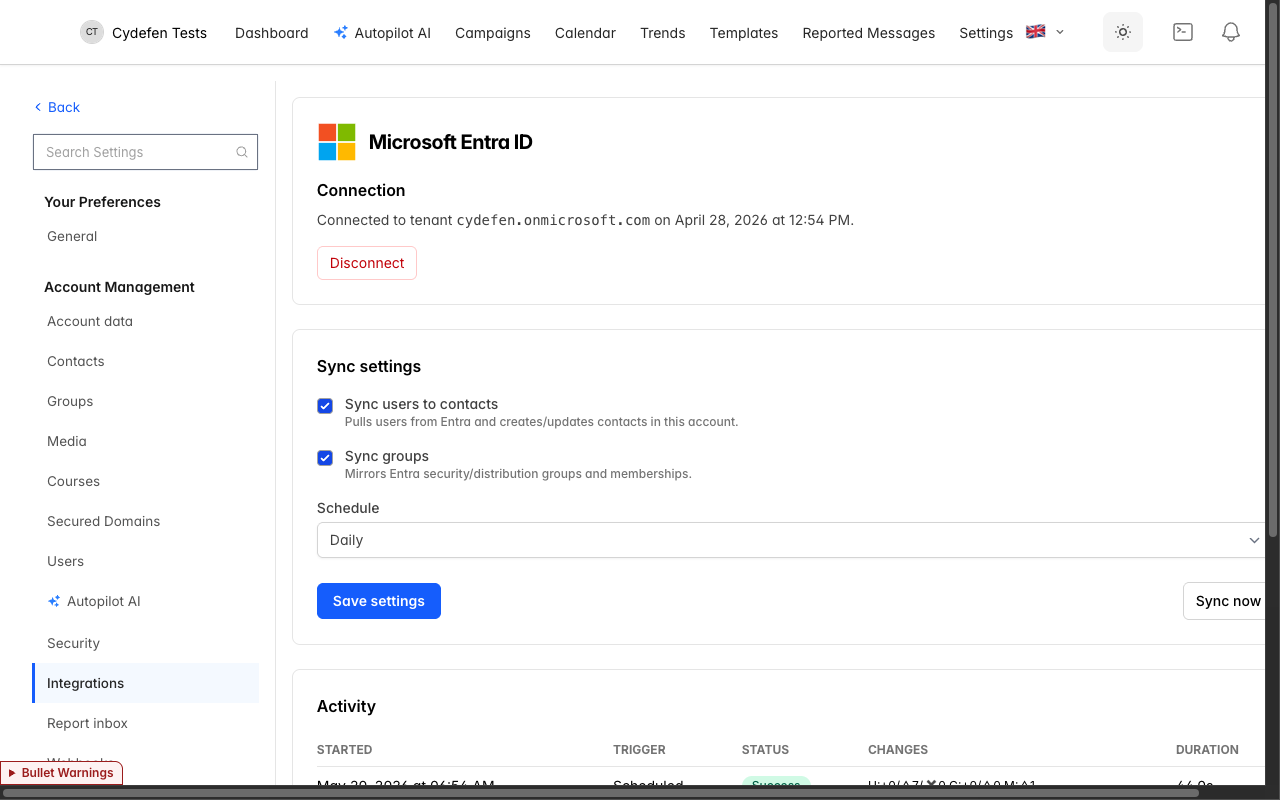
You’re now connected. The Microsoft card shows an emerald status dot, the tenant ID in monospace, and the consent timestamp.
Limit the import to selected groups
Section titled “Limit the import to selected groups”In the connection form or sync settings, enter up to 50 Entra group object IDs. Spaces, commas and new lines are accepted. The import follows nested group membership and deduplicates users appearing in multiple selected groups. Empty scope selects the whole tenant. After a complete user import, contacts previously imported by this integration but no longer in scope are disabled. Existing campaign audiences remain fixed when group membership changes.
For demo accounts, choose an isolated test group. Only mailboxes on the demo delivery allowlist are imported, and their profile details are replaced with synthetic demo text. Without a group, synchronization stays off, including immediately after consent.
25.3 Sync schedule
Section titled “25.3 Sync schedule”Click Manage on the active Microsoft card to open the integration settings. Two checkboxes and one dropdown:
- Sync users to contacts — on by default. Pulls users from the selected group scope (or the whole tenant when the scope is empty) and upserts them as PhishSpot
Contactrows. - Sync groups — on by default. Pulls every Entra group (security and Microsoft 365 groups) and upserts them as PhishSpot
Grouprows. Memberships are reconciled in the same pass. - Schedule — one of:
- Off — no automatic sync. You can still trigger sync manually (§25.5).
- Hourly — runs every hour on the hour.
- Daily — runs once a day at 02:00 UTC. Default for production tenants.
- Weekly — runs once a week, on Mondays at 02:00 UTC.
Save settings. The platform’s scheduler (ScheduledDirectorySyncsJob) fan-outs at each interval, queuing one DirectorySyncJob per active integration matching that schedule.
The first sync after a fresh connection is usually the largest — it imports everything. Subsequent syncs only touch what changed (a handful of users updated, one group created, one membership removed), so they’re fast — typically under a minute even for thousands of users.
25.4 What gets imported
Section titled “25.4 What gets imported”For each Entra user the importer creates or updates a Contact row keyed by the Entra object ID (oid). The mapping is:
| PhishSpot Contact field | Entra source |
|---|---|
email | userPrincipalName (falls back to mail) |
first_name, last_name | givenName, surname |
title | jobTitle |
department | department |
location | officeLocation (city + country fallback) |
telephone | mobilePhone (falls back to businessPhones) |
external_id | id (the Entra OID) |
external_state | active if accountEnabled=true, else disabled |
source | always :entra |
synced_at | sync timestamp |
For each Entra group the importer creates a Group row keyed by group OID:
| PhishSpot Group field | Entra source |
|---|---|
name | slugified displayName (e.g., “Dział IT” → dzial-it) |
display_name | displayName (preserves casing and Polish characters) |
external_id | group id |
source | :entra |
Membership is reconciled per sync: PhishSpot lists all current members of each Entra group, removes any local ContactGroup rows whose contacts are no longer in the Entra group, and creates new ones for additions.
Important: Contacts whose Entra account is deleted (not just disabled) are not removed from PhishSpot — they’re marked external_state: disabled so historical reports remain intact. To purge a contact entirely, delete it from the PhishSpot UI manually.
25.5 Manual sync (“Sync now”)
Section titled “25.5 Manual sync (“Sync now”)”The integration management page has a Sync now button. Click it to enqueue a DirectorySyncJob immediately, regardless of the configured schedule. Use this for:
- Initial connection — most admins click Sync now once right after consent so the first import doesn’t wait for tomorrow’s 02:00 UTC cron.
- Onboarding push — after IT marks 20 new hires in Entra, you want them in PhishSpot before your next scheduled run.
- Troubleshooting — to retry after a transient Microsoft Graph error visible in the activity log.
A manual sync writes a DirectorySyncLog entry with trigger: manual — useful for distinguishing intentional admin actions from cron-driven runs when auditing.
25.6 Sync history
Section titled “25.6 Sync history”Below the settings, the activity table shows the last 50 sync runs. Columns:
| Column | What it shows |
|---|---|
| Started | When the run kicked off |
| Trigger | Manual (admin clicked Sync now), Scheduled (cron), or OAuth callback (auto-sync right after admin consent) |
| Status | Running, Success, Failed, or Partial (with color-coded badge) |
| Changes | Users created / updated / disabled, groups created / updated, memberships changed |
| Duration | Wall-clock time for the run |
Example activity table with synthetic data:
| Started | Trigger | Status | Changes | Duration |
|---|---|---|---|---|
| 6 hours ago | Scheduled | Success | 0c · 7u · 0d / 0c · 0u / 1m | 22 s |
| 2 days ago | Scheduled | Success | 1c · 2u · 1d / 0c · 0u / 2m | 19 s |
| 7 days ago | Manual | Success | 0c · 4u · 0d / 0c · 0u / 0m | 14 s |
| 8 days ago | Scheduled | Failed | — | 1 s |
| 10 days ago | Scheduled | Success | 1c · 3u · 0d / 0c · 0u / 1m | 16 s |
A failed or partial run needs review. A Microsoft Graph permission error (403) requires checking application permissions and administrator consent. A later scheduled run can retry transient failures.
25.7 Troubleshooting
Section titled “25.7 Troubleshooting”Connect button takes me to a “consent denied” screen. You signed in as a non-admin user in your tenant. Sign out of all Microsoft accounts, sign in fresh as a Global Administrator, and retry.
Sync runs but no contacts appear. Open the activity log. If status is Success and changes are all zero, check the selected group object IDs and their transitive membership. Disabled directory users remain visible as disabled contacts. Demo accounts additionally require a delivery-allowlisted mailbox.
“Tenant mismatch” on callback. The Entra tenant ID you entered doesn’t match the tenant whose admin granted consent. Disconnect and reconnect with the correct tenant ID.
Partial syncs. If a sync finishes with status Partial, some upserts succeeded and others failed — usually because one user record violated a uniqueness constraint (e.g., two Entra users with the same email). The run status and counters show partial progress. Logs do not expose affected email addresses. Missing users are not disabled after a partial or interrupted user import.
Schedule is “Off” but I expected Daily. Schedule defaults to the value you saved last — there’s no platform-wide default. New connections are created with Off so you can review settings before automation starts.
25.8 Cross-references
Section titled “25.8 Cross-references”- The Microsoft SSO sign-in that uses the same integration: Chapter 24 SSO with Microsoft 365.
- The Contacts list that imported contacts join: Chapter 5 Contacts.
- The Groups feature mirroring Entra groups: Chapter 6 Groups.
- The autopilots that automatically include newly-synced contacts via the Auto-include new members flag: Chapter 23 Autopilots.
- The Webhooks that can notify external systems when contacts or groups change: Chapter 26 Webhooks.