

Outlook Add-in: Central Deployment
This page is for IT administrators who want the Report Phishing button to appear automatically for every user in their M365 tenant. For end-user install steps, see Outlook Add-in.
21.1 What gets installed
Section titled “21.1 What gets installed”A small XML manifest (~5 KB). The manifest’s SourceLocation points at https://platform.phishspot.com/outlook/taskpane, which loads the live UI bundle. Result: shipping a new feature does not require re-distributing the add-in — the manifest itself only changes when the button label, permissions, or icons change.
21.2 Download the artifact
Section titled “21.2 Download the artifact”Download the manifest file for direct upload:
phishspot-outlook-manifest-v1.3.0.xml
Or the full sideload package (zip with icons + README):
phishspot-outlook-sideload-v1.3.0.zip
21.3 Deploy via Microsoft 365 Admin Center
Section titled “21.3 Deploy via Microsoft 365 Admin Center”PhishSpot uses the add-in only manifest format, so deploy it from the Integrated apps portal (Microsoft’s recommended path). The classic admin-center Add-ins portal works too but only supports this manifest type — the unified Microsoft 365 manifest is not used here, so either portal is fine.
Walk-through
Section titled “Walk-through”-
Sign in to admin.microsoft.com as a Global Admin.
-
From the left navigation, expand … Show all, then choose Settings → Integrated apps.
-
Click the Add-ins link near the top of the Integrated apps page, then Deploy Add-in.
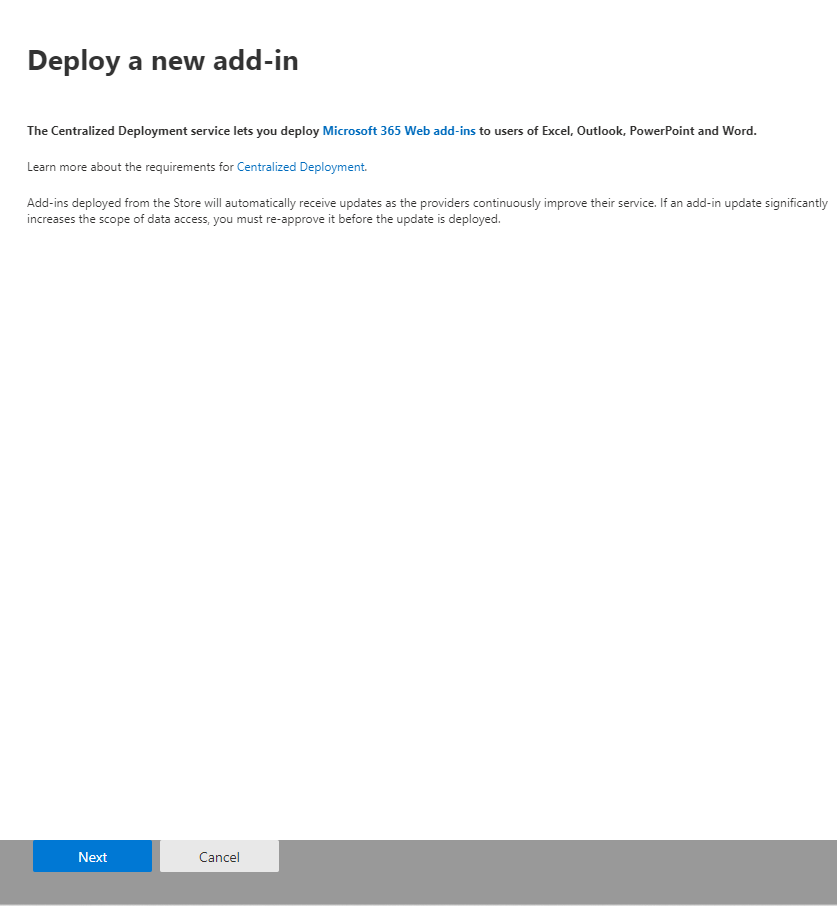
-
In the source picker, choose Upload custom apps → Upload manifest file (.xml) from device and pick
phishspot-outlook-manifest-v1.3.0.xml.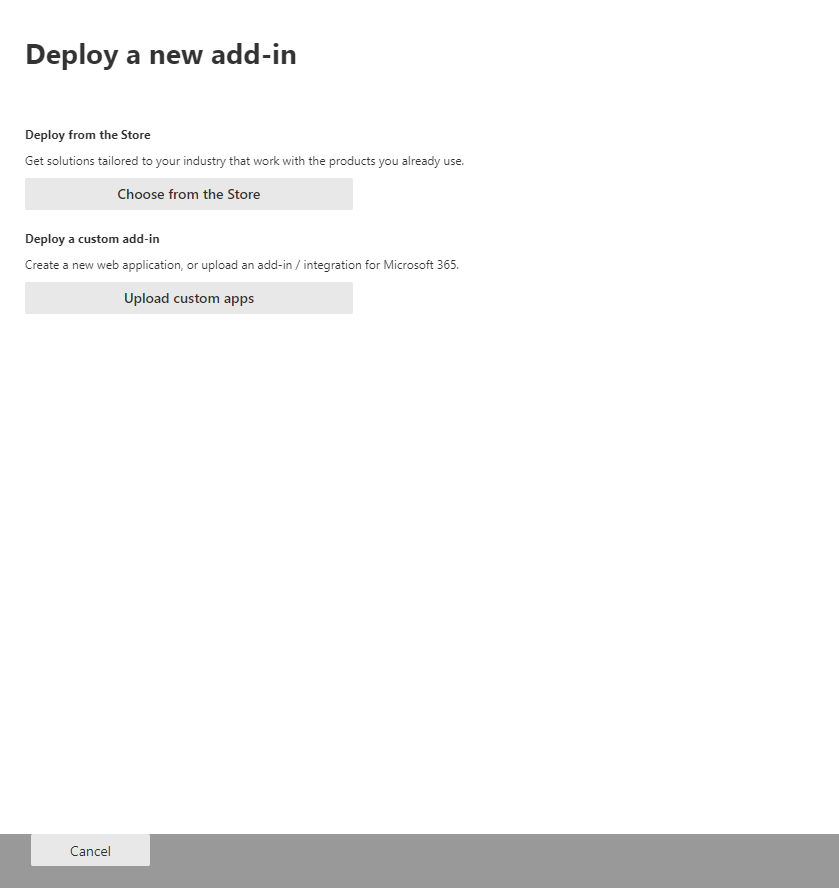
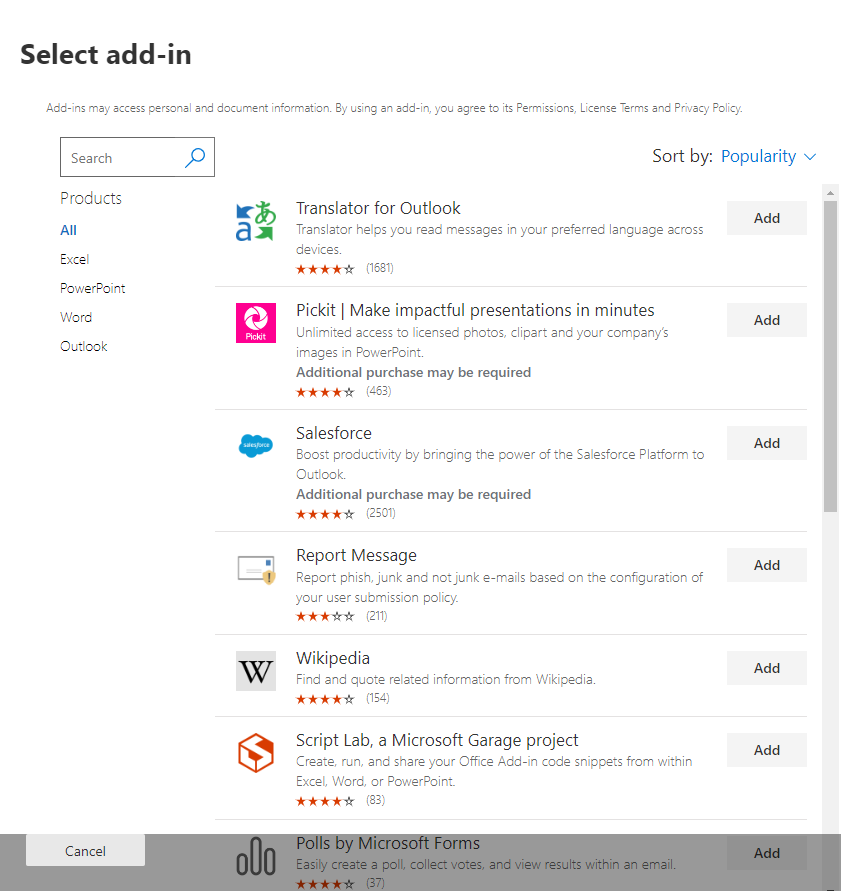
(The wizard also lists Microsoft Marketplace add-ins — those are unrelated, ignore them. PhishSpot is a line-of-business (LOB) add-in delivered by manifest file.)
-
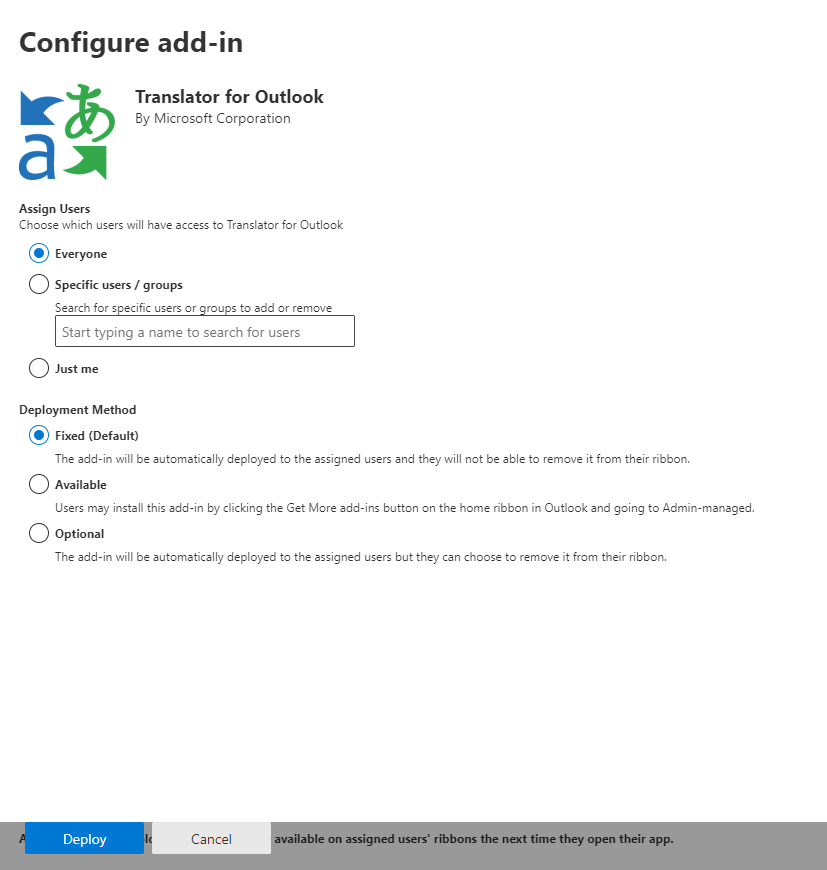
On the Assign users step, pick the scope and click Deploy.
-
The standard Microsoft 365 manifest requests ReadItem. Clients without direct header access separately request delegated Microsoft Graph Mail.Read, User.Read, and offline_access. Review that consent against your tenant policy; Mail.Read grants mailbox read access. The application uses it for the selected report and does not request mail sending or modification.
-
Confirm. The wizard’s final step prompts you to announce the deployment to users — see Tips for getting users started below.
Assignment scope: pick groups, not individuals
Section titled “Assignment scope: pick groups, not individuals”| Scope | When to use |
|---|---|
| Everyone | ”Use sparingly — only for add-ins that are truly universal.” Reporting phishing is a good fit for everyone in most organisations, so this is usually correct. |
| Specific users / groups ⭐ | Recommended. Assigning by group means new joiners get the add-in automatically when they’re added to the group, and leavers lose it when removed. No admin action needed on either event. Assigning to individual users is fragile — every new hire requires a manual add. |
| Just me | Ideal for testing. After verifying the button works in your own mailbox, return to the deployed add-in and click Change who has access to add-in to widen the rollout. |
Propagation timing
Section titled “Propagation timing”Microsoft’s documented expectation is that add-ins can take 24–72 hours to appear on the ribbon after deployment, though most users see it within 1–6 hours. Users may need to relaunch Outlook (close every window, then reopen) before the button shows up. Don’t escalate too eagerly — the propagation is normal.
21.4 Recommended rollout strategy
Section titled “21.4 Recommended rollout strategy”Microsoft’s published guidance is to roll out in waves:
- Wave 1 — IT + stakeholders. Deploy to your IT team and a handful of business stakeholders. Verify the Report Phishing button appears in their Outlook, that pairing works end-to-end, and that a reported test message lands in PhishSpot’s Reported Messages list under the right account. Resolve any tenant-specific surprises here (proxy / firewall / Contact provisioning gaps).
- Wave 2 — a department or two. Expand to one or two departments. Re-evaluate adoption and incident-response load. Tweak your user comms based on Wave 1 feedback.
- Wave 3 — full rollout. Once Wave 2 looks healthy, switch the assignment to the org-wide group (or Everyone) and announce broadly.
For a tenant with under ~50 mailboxes you can collapse Waves 1 and 2 into a single pilot. For tenants over a few thousand mailboxes, add a fourth wave that splits Wave 3 by region or job function.
21.5 Tips for getting users started
Section titled “21.5 Tips for getting users started”Microsoft explicitly calls this out as good practice, and it materially boosts reporting rates:
- Email everyone the day the add-in goes live. Include a one-paragraph explanation of what the button does, a screenshot of the ribbon, and a single sentence on what not to do (e.g. “if in doubt, click Report — false reports are fine; clicking the link inside the email is not.”).
- Link to your help-desk runbook. A short FAQ that covers: “I don’t see the button yet” (24–72 h propagation), “It asks for a 6-digit code” (pair-once flow), “I got a thank-you message — what happens next?” (security team triage SLA).
- Onboarding integration. Add a step to your new-hire IT onboarding that confirms the user can see the button and has paired their device.
- Reinforce on Phishing Awareness Month. Bump the comms in October — most orgs see a spike in reports during that month.
21.6 Provision your contacts in PhishSpot
Section titled “21.6 Provision your contacts in PhishSpot”The add-in pairs a user to a single PhishSpot Contact. Make sure every user who’ll use the add-in has a corresponding Contact in your PhishSpot account before they try to pair, otherwise pairing will fail with “We could not find an account for your sign-in.”
You can bulk-create contacts from:
- A CSV import (see Contacts)
- Microsoft Entra (Azure AD) directory sync — automatic
- Manual creation
21.7 First-pair user journey
Section titled “21.7 First-pair user journey”Outlook stores activation in roaming mailbox settings, so pairing can follow the same mailbox between clients. First activation:
- Outlook → click Report Phishing in any read message.
- The taskpane shows a 6-digit code.
- User opens
https://platform.phishspot.com/guest/activation/new, signs in, pastes the code. - The panel reports the selected message automatically, or asks the user to connect the same Microsoft 365 mailbox and retry.
Each successful pair creates an API token in PhishSpot, scoped to reported_messages:create for one specific account. You can list and revoke these tokens from Settings → API Tokens.
21.8 Rolling updates
Section titled “21.8 Rolling updates”We release new versions of the JS bundle every few weeks. You don’t need to re-upload the manifest for those releases — the version pointer at https://platform.phishspot.com/api/v1/outlook/version is the single source of truth, and every Outlook client picks up the new bundle on next open.
When the manifest itself changes (new permission, new button surface), you’ll get a release note that says “manifest update required” and a new phishspot-outlook-manifest-vX.Y.Z.xml. Upload that the same way you uploaded v1.0.0 — M365 Admin Center recognises it as an upgrade of the existing app (same Id GUID). To force an update from the LOB add-in’s pane, select the deployed add-in and click the Update Button at the bottom-right of its details panel; the change applies the next time each user launches Outlook.
21.9 Updates vs. blocked clients
Section titled “21.9 Updates vs. blocked clients”The add-in’s bootstrap checks the version endpoint on every open. Two outcomes:
latest > bundled— soft banner shown to the user. They can still report.min_supported > bundled— hard block. Reporting is disabled until the manifest is re-uploaded.
We only bump min_supported when an old version is incompatible with a security or data-model change. This is rare; expect one or two events per year at most.
21.10 Decommissioning
Section titled “21.10 Decommissioning”To remove the add-in:
- M365 Admin Center → Integrated apps → PhishSpot Report Phishing → Remove. This unlinks it from all user mailboxes within a few hours.
- PhishSpot → Settings → API Tokens — revoke all tokens with source =
outlook_addin. Users who somehow still have an installed copy lose their ability to submit reports.
21.11 Troubleshooting
Section titled “21.11 Troubleshooting”| Symptom | Likely cause | Fix |
|---|---|---|
| Button doesn’t appear for any user | Propagation pending | Microsoft says 24–72 h is normal; force-restart Outlook to speed it up |
| Button appears, taskpane shows blank | Browser can’t reach platform.phishspot.com | Check corporate proxy / firewall |
| Pairing always says “no account” | User has no Contact record in PhishSpot | Provision the Contact, retry |
| Reports fail with 403 | Token’s pinned account doesn’t match | Unpair + re-pair the device |
| New Outlook for Windows: stuck on old version | M365 caches add-in metadata aggressively | Run outlook.exe /resetnavpane or clear the Wef folder |
21.12 Compliance notes
Section titled “21.12 Compliance notes”- Reports are stored under your PhishSpot account, subject to your data residency settings.
- The device token is stored in
Office.roamingSettingsand sent only to the configured PhishSpot API. Delegated Microsoft tokens remain encrypted on the PhishSpot server. - The add-in’s source code lives in the same Git repo as the PhishSpot platform under
plugins/office/. It’s reviewed under the same change-control as the rest of the product.
21.13 Version 1.3: mobile, older clients and local Exchange
Section titled “21.13 Version 1.3: mobile, older clients and local Exchange”Manifest update required. Upload the v1.3.0 manifest to expose the mobile command and lower the advertised minimum to Mailbox 1.3. The bundle includes ES5 syntax and browser polyfills for legacy webviews. Feature availability also depends on the Exchange server and Office updates. Validate your actual Outlook 2016, 2019, 2021 and 2024 installations during the pilot; a compatible manifest is not a completed client acceptance test.
| Environment | Deployment and headers |
|---|---|
| Microsoft 365 desktop/web | Standard manifest (ReadItem). Native full headers when available, otherwise delegated Graph sign-in. |
| Outlook iOS / Android with Microsoft 365 | Standard manifest with the mobile command. Delegated Graph sign-in when native headers are unavailable. |
| Local Exchange | On-premises manifest v1.3.0, deployed by the Exchange administrator. Requests ReadWriteMailbox, which Office requires for EWS. The add-in reads transport headers using GetItem and does not write mail. |
Deploy one manifest variant per mailbox. They identify the same add-in. The local Exchange variant has no mobile command and never uses EWS against Exchange Online. It needs HTTPS access to the local Exchange EWS endpoint and Office.js availability.
For Microsoft 365 fallback, the PhishSpot Microsoft application must permit the web redirect https://platform.phishspot.com/api/integrations/microsoft_graph/callback and delegated Graph User.Read/Mail.Read with offline access. Tenant policy may require administrator consent. This is separate from the application directory permissions used for Entra contact/group sync. The Microsoft sign-in UPN must match the paired PhishSpot contact email. No application-wide Mail.Read permission is needed.
Account administrators can inspect and remove stored mailbox access at Settings → Integrations → Outlook mailbox connections, through the JSON:API resource outlook_mailbox_connections, or with MCP manage_outlook_mailboxes. Removing this connection preserves the activation and past reports. Signing out of the add-in revokes activation and removes its stored mailbox credentials. To revoke the Microsoft grant itself, use Microsoft Entra consent management.