

Reported Messages
Reported Messages is the inbox where your employees forward suspicious emails so your team can review them inside PhishSpot. Every account gets its own unique address. Reports show up in a dedicated section in the main navigation. The viewer keeps potentially dangerous content blocked by default — images, styling, links and attachments are all switched off until you decide otherwise.
19.1 The Phishing Report Inbox
Section titled “19.1 The Phishing Report Inbox”Each account gets its own inbox address in the form <local>@platform.phishspot.com. The local part is filled in automatically when the account is created and can be edited from Settings → Account Details → Phishing Report Inbox.
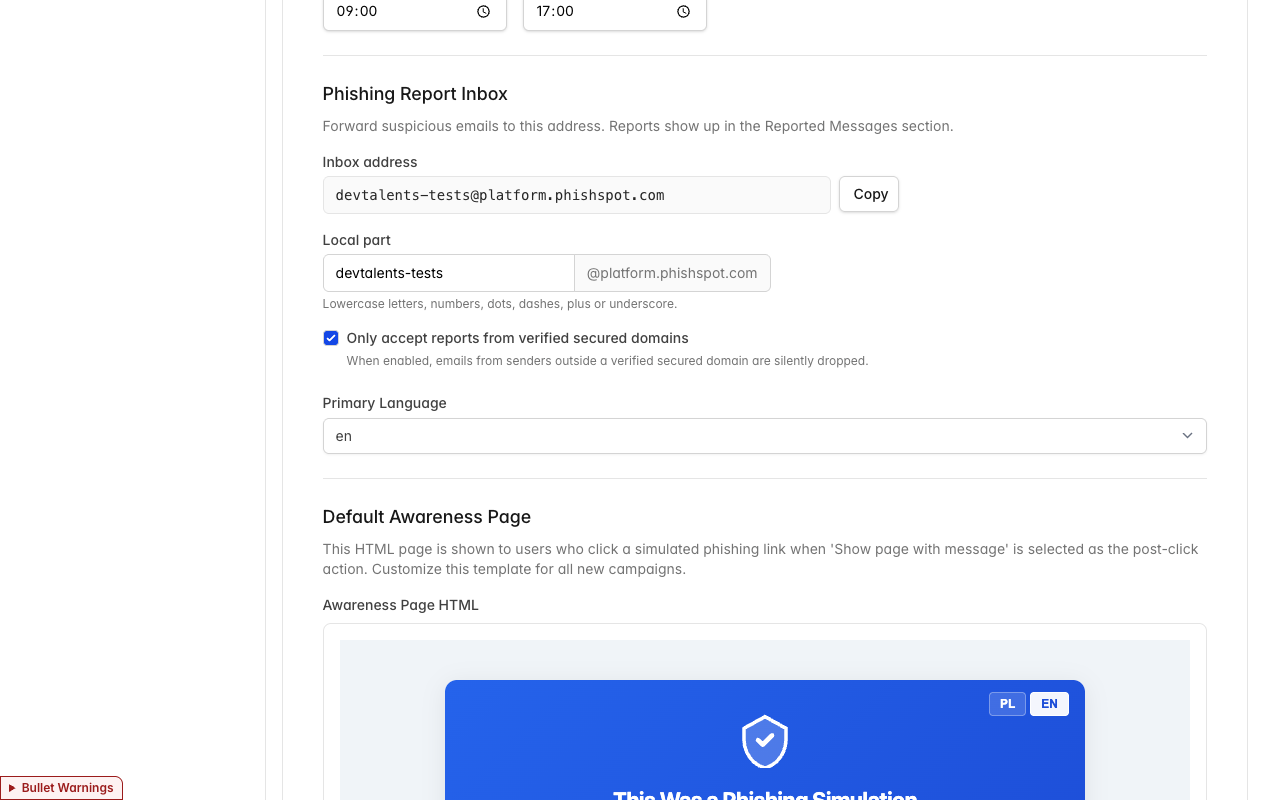
- Inbox address — the full address employees should forward to. The Copy button puts it on the clipboard so you can paste it into onboarding materials, signatures, or your help-desk knowledge base.
- Local part — the editable username part of the address. Use lowercase letters, numbers, dots, dashes,
+or underscores. - Only accept reports from verified secured domains — see 19.2.
19.2 Limit accepted senders
Section titled “19.2 Limit accepted senders”The Only accept reports from verified secured domains toggle (ON by default) limits who can submit a report:
- ON — only emails whose sender domain matches one of your verified Secured Domains are accepted. Everything else is discarded without notifying the sender.
- OFF — any sender is accepted.
Leave it ON in production. Switch it OFF temporarily during pilots when reporters might send from mailboxes you haven’t onboarded yet.
When a message is dropped, the sender is not notified — this is intentional, so that someone probing your inbox does not get a confirmation.
19.3 How a report arrives
Section titled “19.3 How a report arrives”The flow for your team:
- An employee receives a suspicious email.
- They forward it to the account’s Reported Messages inbox address.
- The report appears in Reported Messages in the main navigation, sorted with the newest first.
Promote the inbox address to your employees through onboarding, your help-desk knowledge base, or a signature footer.
19.4 The Reported Messages page
Section titled “19.4 The Reported Messages page”Open Reported Messages from the top navigation. The page is a two-pane list/detail view:
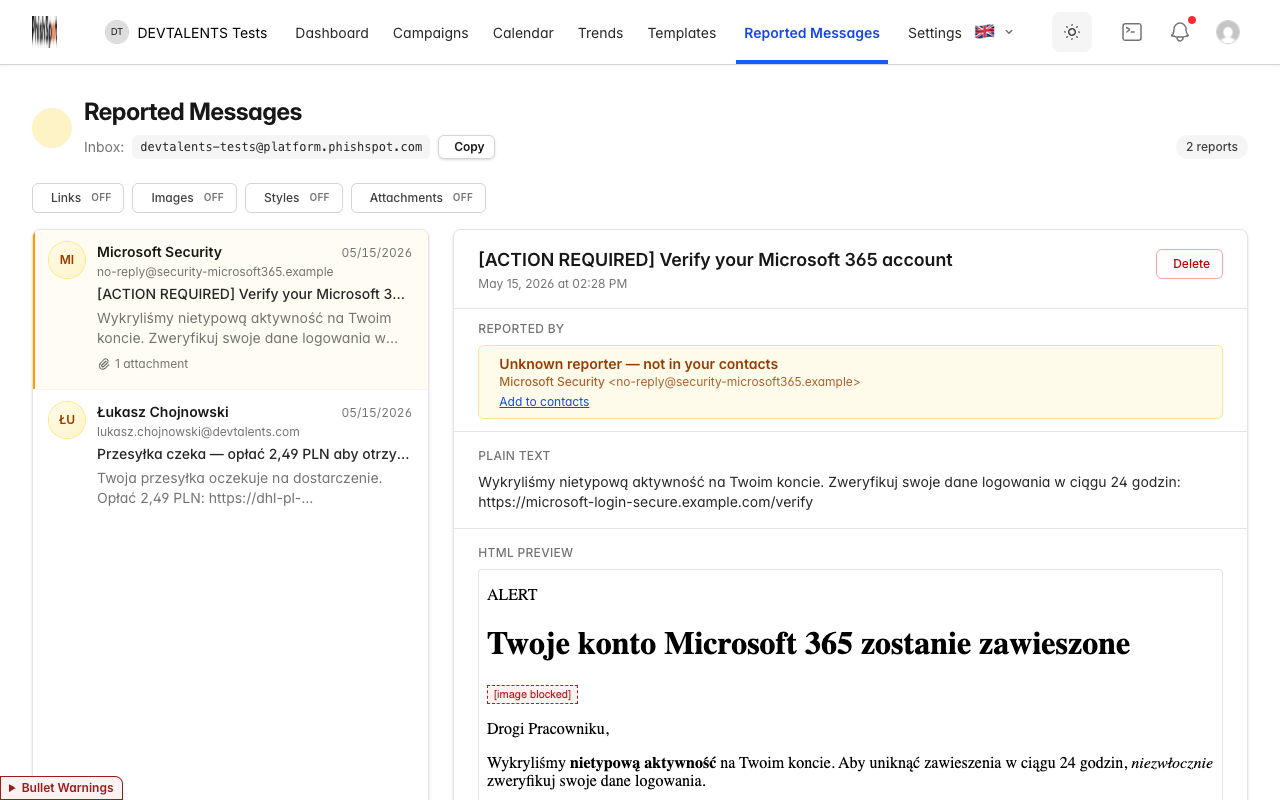
- Left — list of reports, newest first. Each item shows the reporter’s name (or email), the email’s subject and excerpt, an attachment count, and the receive date.
- Right — the detail panel for the selected report. Click a different item on the left and the right pane updates instantly.
- Counter — the pill in the top-right shows how many reports your account has.
- Inbox — the receiving address is repeated under the title with a Copy button.
19.5 Who reported it
Section titled “19.5 Who reported it”Right under the subject, every report shows a Reported by panel that tells you whether the sender is known to your account.
Known reporter
Section titled “Known reporter”For Outlook add-in reports, the reporter is the Contact who activated the add-in. The sender of the suspicious message is a separate person. Forwarded inbox reports use the forwarding address to find the contact. A recognized reporter links to their contact profile:
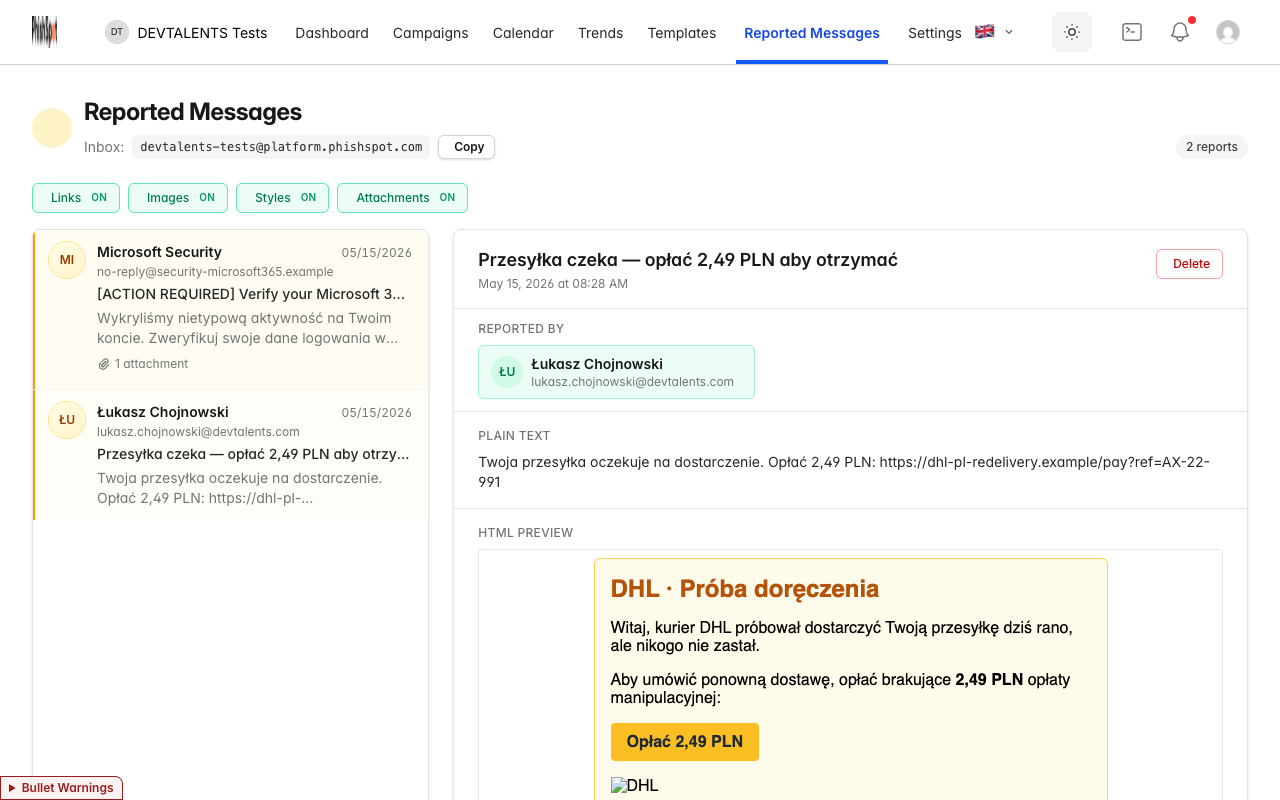
Clicking the panel takes you straight to the contact, where you can review their group memberships, prior campaign results, and contact history.
Unknown reporter
Section titled “Unknown reporter”If no contact matches, the panel is amber and shows the sender details plus a quick-add link:
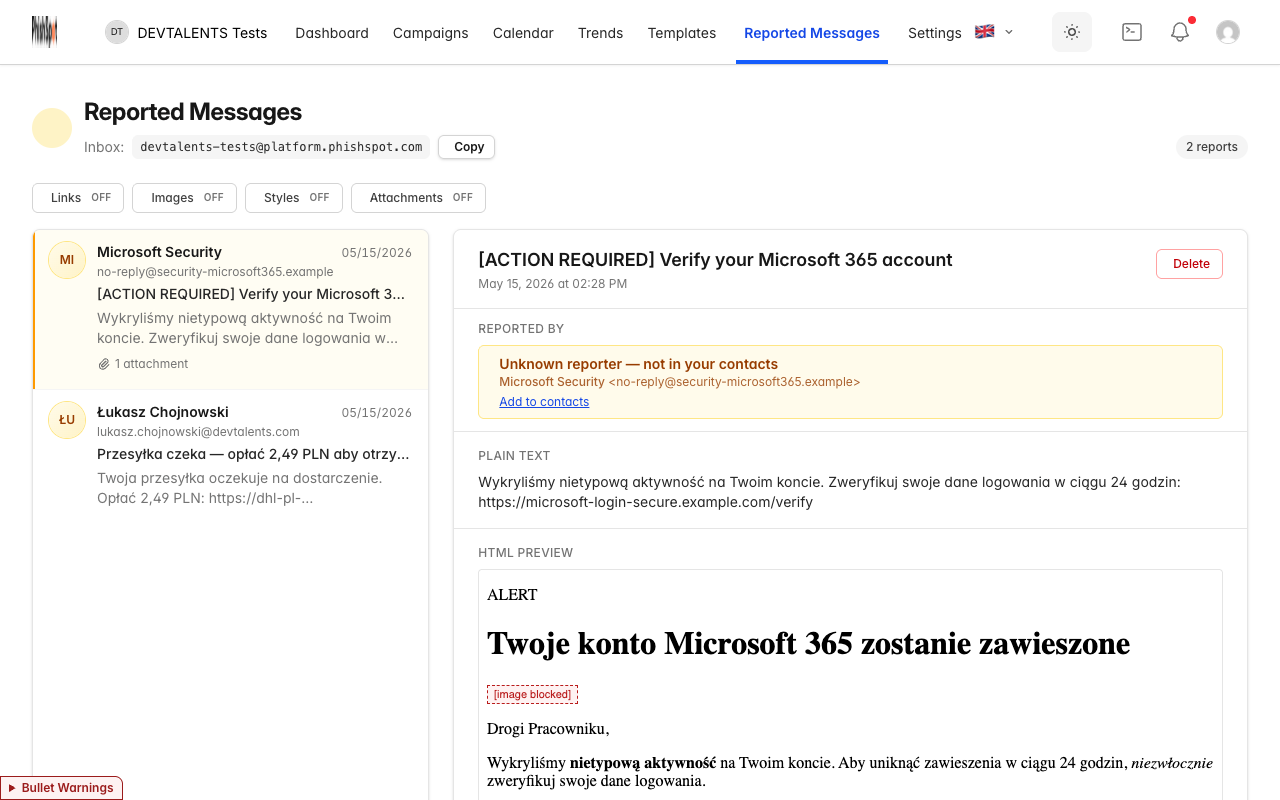
The Add to contacts link opens the new-contact form with the email already filled in — just add the first/last name and save.
A report from an address you have never onboarded deserves extra scrutiny. The amber warning is your first signal that something is off.
19.6 Safe-preview controls
Section titled “19.6 Safe-preview controls”Phishing emails are by definition untrusted. The detail view keeps potentially dangerous parts of the email switched OFF by default. Four controls let you progressively allow more of the original content:
| Control | When OFF (default) | When ON |
|---|---|---|
| Links | Links are shown as red strike-through text. Hover to see the destination URL in a tooltip. Not clickable. | Links are clickable and open in a new browser tab (never inside PhishSpot). |
| Images | Each image is replaced with a [image blocked] placeholder. | Images load from their original sources. |
| Styles | All custom styling is removed — plain text only. | The email is rendered with its original styling. |
| Attachments | Filenames are listed, but no download buttons are shown. | Each attachment has a Download button. |
Turning any control ON opens a confirmation dialog:
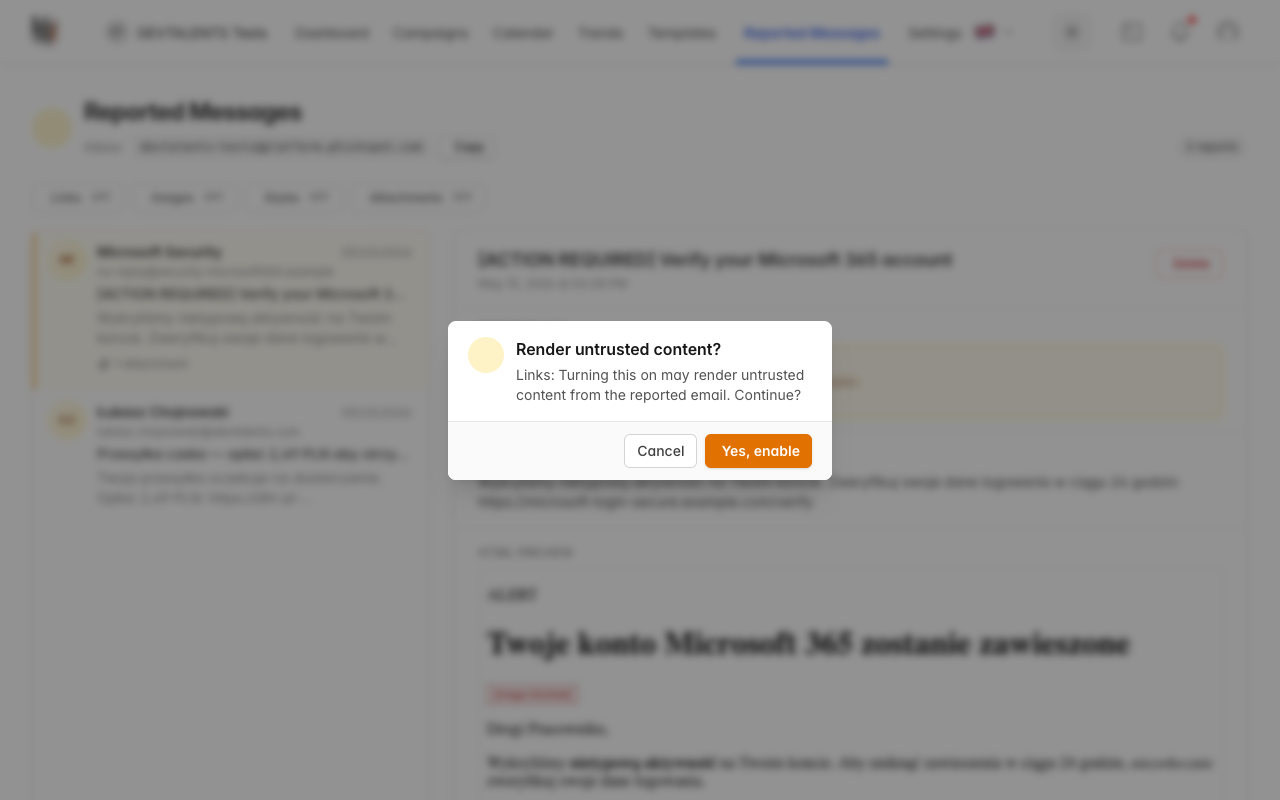
Turning a control OFF requires no confirmation.
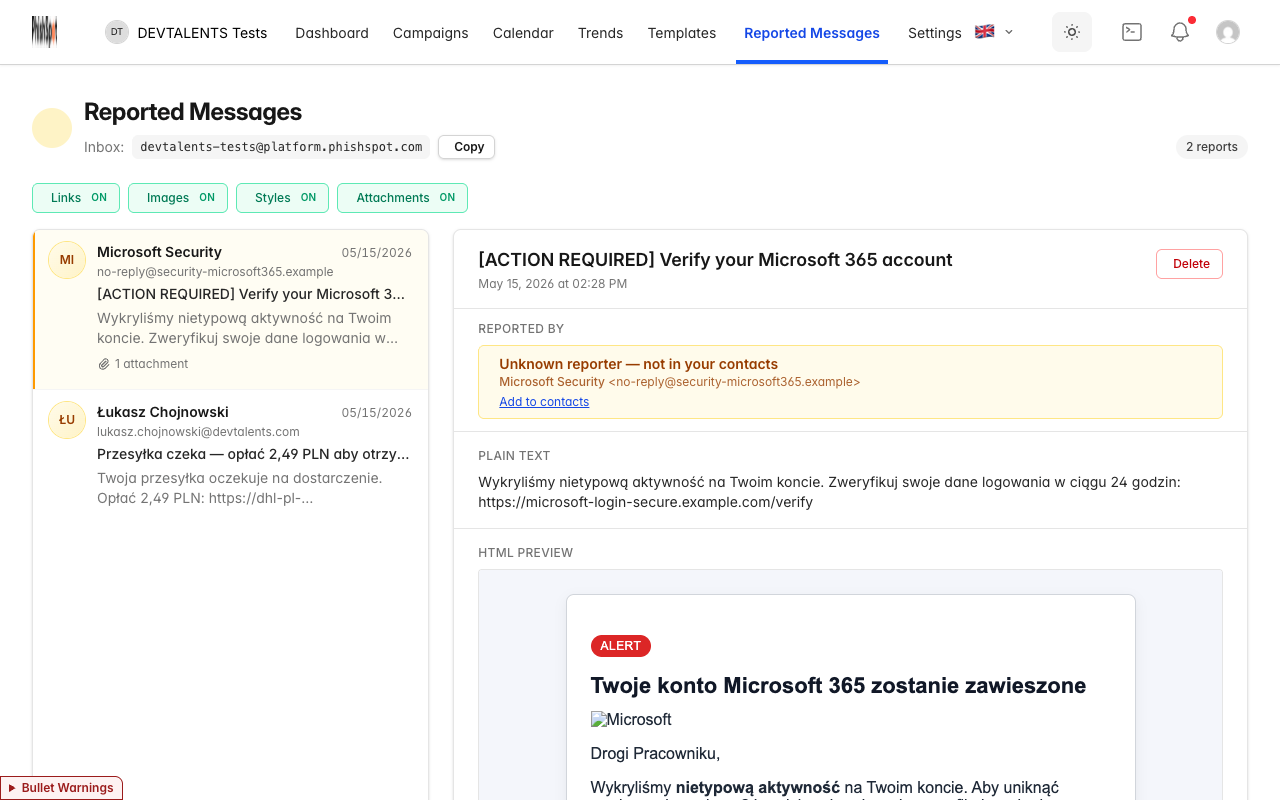
Once styles and images are both enabled, the email renders the way the attacker designed it — useful when investigating a click-through campaign:
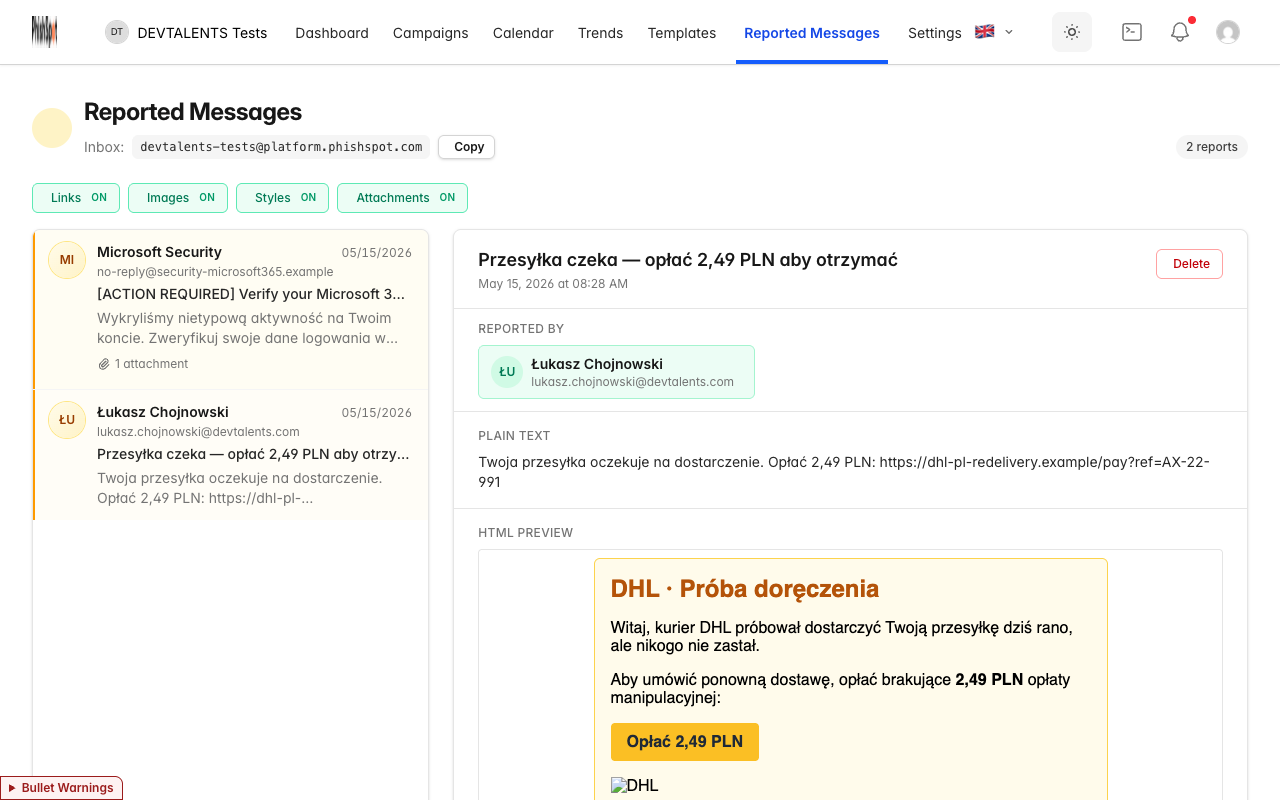
With Links ON, the buttons inside the email become clickable. They always open in a new browser tab, so you can inspect the destination URL without leaving PhishSpot:
19.7 Deleting a report
Section titled “19.7 Deleting a report”The Delete button in the top-right of the detail panel removes the report (after a confirmation). Only admins and editors can delete; members can only view.
19.8 Evidence and simulation reports
Section titled “19.8 Evidence and simulation reports”Open Transport headers in a report to inspect the preserved headers, including repeated Received fields and long authentication results. The capture status tells you whether headers were collected, were incomplete, or came from a historical record without a completeness check. Forwarding can omit the original message’s headers.
A Verified simulation report is linked to the specific message sent to that reporter. It counts once for that campaign and contact, including sequence messages. Reporting an unrelated message does not credit a recent campaign. External message means no simulation matched; it does not establish whether the message is malicious. Unverified reports do not count as simulation reports.
Repeated submissions from the same activated contact return the existing report. Reports from different contacts remain separate. Oversized headers or attachments return an error instead of being silently truncated.