

Team Management
As an Admin, you can manage who has access to your account and what they can do.
12.1 Viewing Team Members
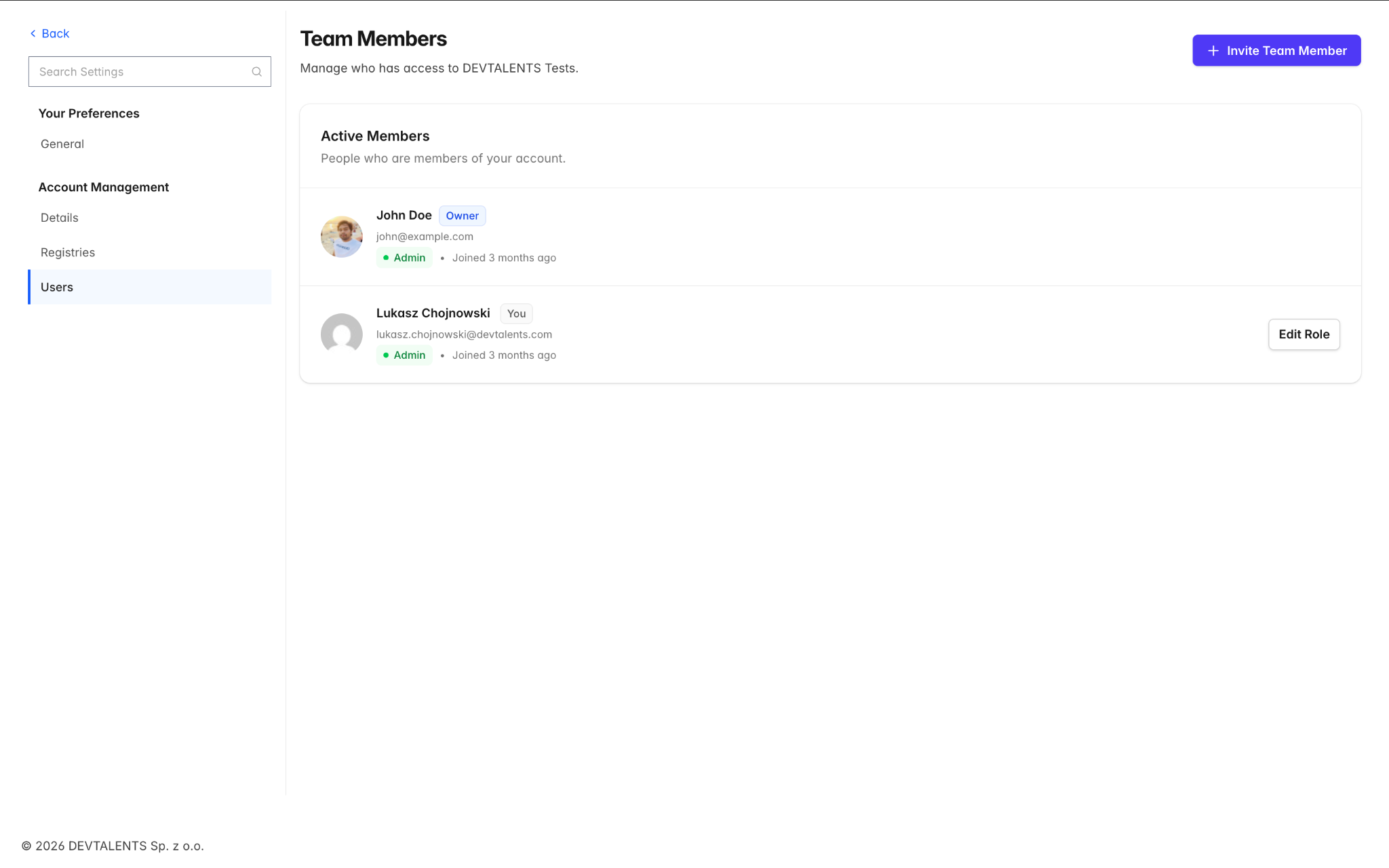
Section titled “12.1 Viewing Team Members”Navigate to Settings → Team Members. This page shows two sections:
-
Active Members — All users currently in your account, showing their name, email, role (Admin/Editor/Member), and join date. The account owner is marked with an Owner badge.
-
Pending Invitations — Invitations that have been sent but not yet accepted.
12.2 Inviting New Members
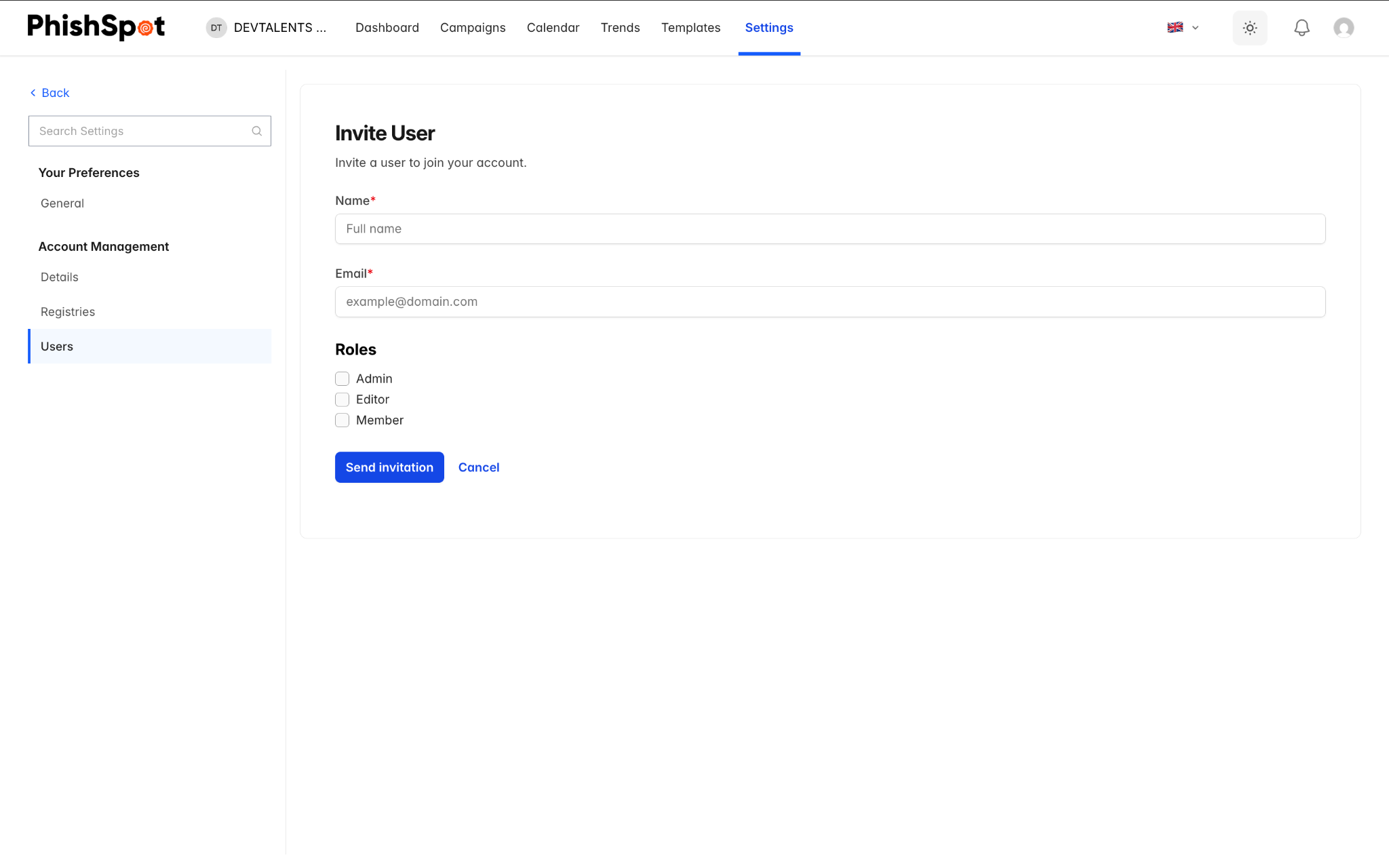
Section titled “12.2 Inviting New Members”Click the Invite Member button to add someone to your team:
-
Enter the person’s email address.
-
Select their role: Admin, Editor, or Member.
-
Click Send Invitation.
The invited person will receive an email with a link to accept the invitation. If they already have a PhishSpot account, they will see the new team appear in their account switcher. If they don’t have an account, they will be prompted to create one.
For pending invitations, you can resend the invitation email or cancel it entirely.
12.3 Changing Roles
Section titled “12.3 Changing Roles”To change a team member’s role, click the Edit button next to their name. Select the new role and save. Remember:
-
Only Admins can change other members’ roles.
-
The account owner’s role cannot be changed — they are always an Admin.
-
You cannot change your own role.
12.4 Removing Members
Section titled “12.4 Removing Members”To remove a team member, click the Remove button next to their name and confirm. The member will lose access to the account but their historical data (e.g., actions in campaign logs) is preserved. The account owner cannot be removed.
12.5 Transferring Ownership
Section titled “12.5 Transferring Ownership”If you are the account owner, you can transfer ownership to another Admin on the team. Navigate to Settings → Account Details and use the Transfer Ownership option. The target user must already be an Admin. After transfer, they become the new owner and you remain as an Admin.