

Risk Scoring
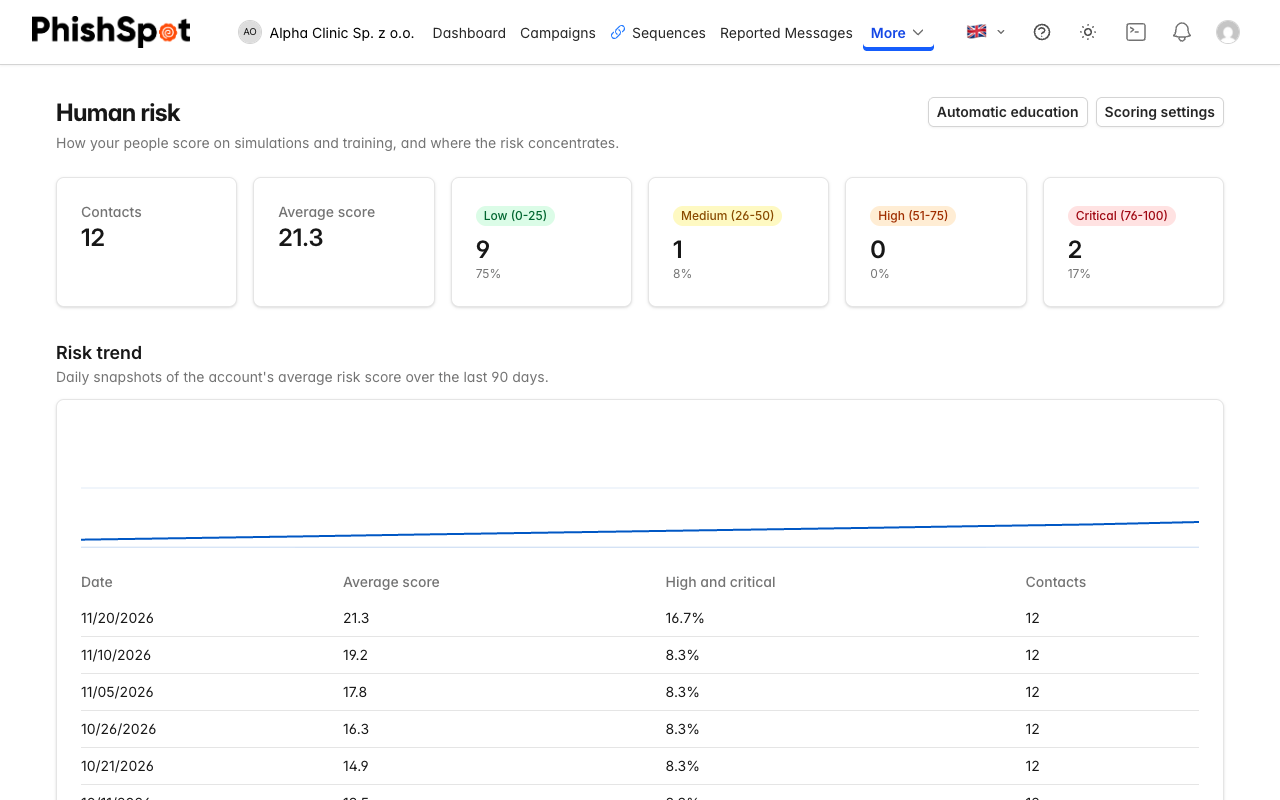
Every contact has a risk score from 0 to 100 and a risk level (low, medium, high or critical). The Risk page in the main menu shows how your people spread across the levels, the average score, and your own indicators with their current status.
36.1 How the score is calculated
Section titled “36.1 How the score is calculated”Each behaviour counts once per campaign, no matter how many times it happened in that campaign.
| Behaviour | Effect on the score | Default points |
|---|---|---|
| Clicked a link in a simulation | raises | 10 |
| Submitted data on the landing page | raises | 25 |
| Replied to the simulated message | raises | 0 (off) |
| Assigned training not completed | raises | 0 (off) |
| Reported a simulation | lowers | 0 (off) |
| Completed a training | lowers | 0 (off) |
The points are added up and kept between 0 and 100. With the defaults the score is simply 10 × simulations clicked + 25 × simulations with submitted data.
“Assigned training” means a training invitation campaign. It counts as not completed once the configured number of days (14 by default) has passed since the invitation without the course being finished.
Risk levels by default: low 0–25, medium 26–50, high 51–75, critical 76–100.
36.2 Tuning the scoring
Section titled “36.2 Tuning the scoring”Account administrators open Risk → Scoring settings and can change:
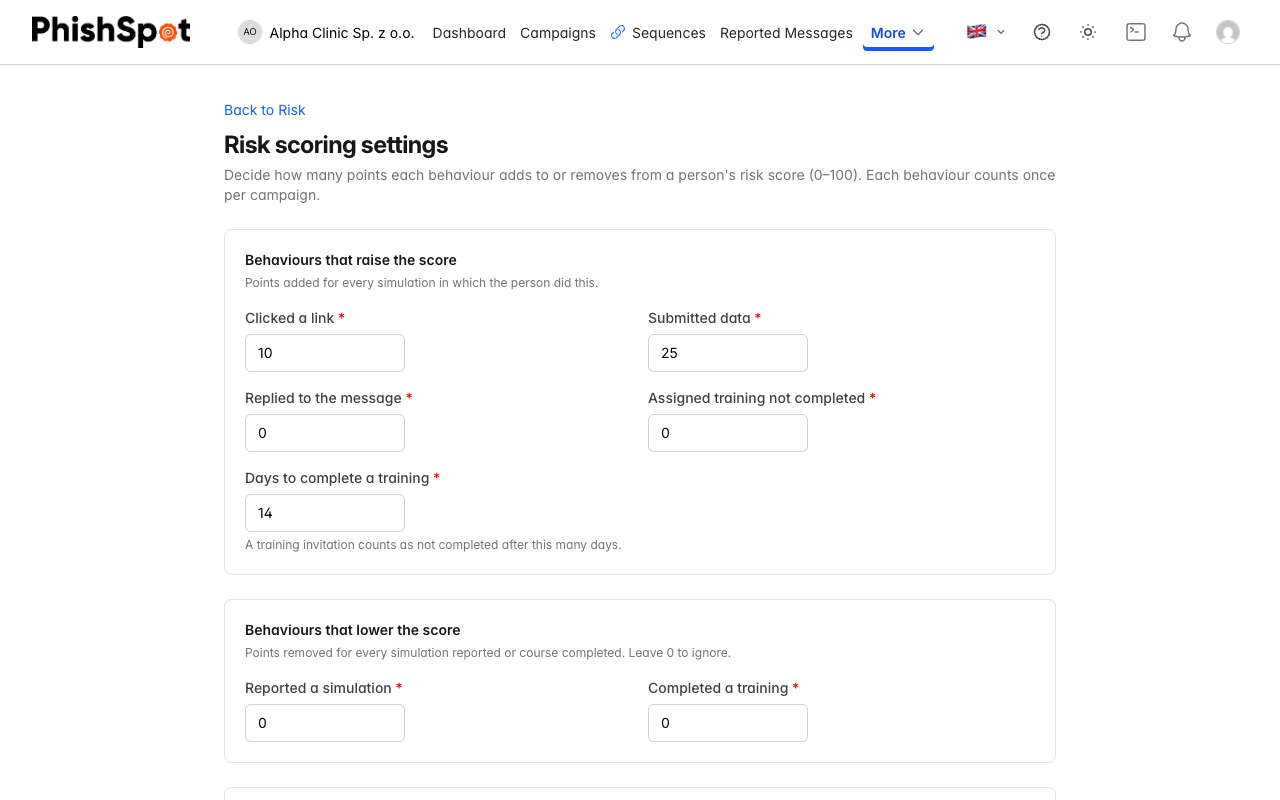
- Points for each behaviour (0–100), including the behaviours that are off by default.
- Days to complete a training before an invitation counts as not completed.
- Half-life (days): optional. The points of an event halve every this many days, so old mistakes fade. Empty means events never fade.
- Lookback window (days): optional. Events older than this are ignored. Empty means the whole history counts.
- Risk levels: the lowest score of the medium, high and critical levels.
Until an administrator saves these settings, scores behave as before: they change only when someone clicks or submits data. After the first save, PhishSpot recalculates every contact’s score in the background, then again every night, and whenever a person replies, reports a simulation or completes a training. Scores can then also go down.
The risk-level filter on the Contacts page and the coloured score badges follow your thresholds.
36.3 Indicators (KPI / KRI)
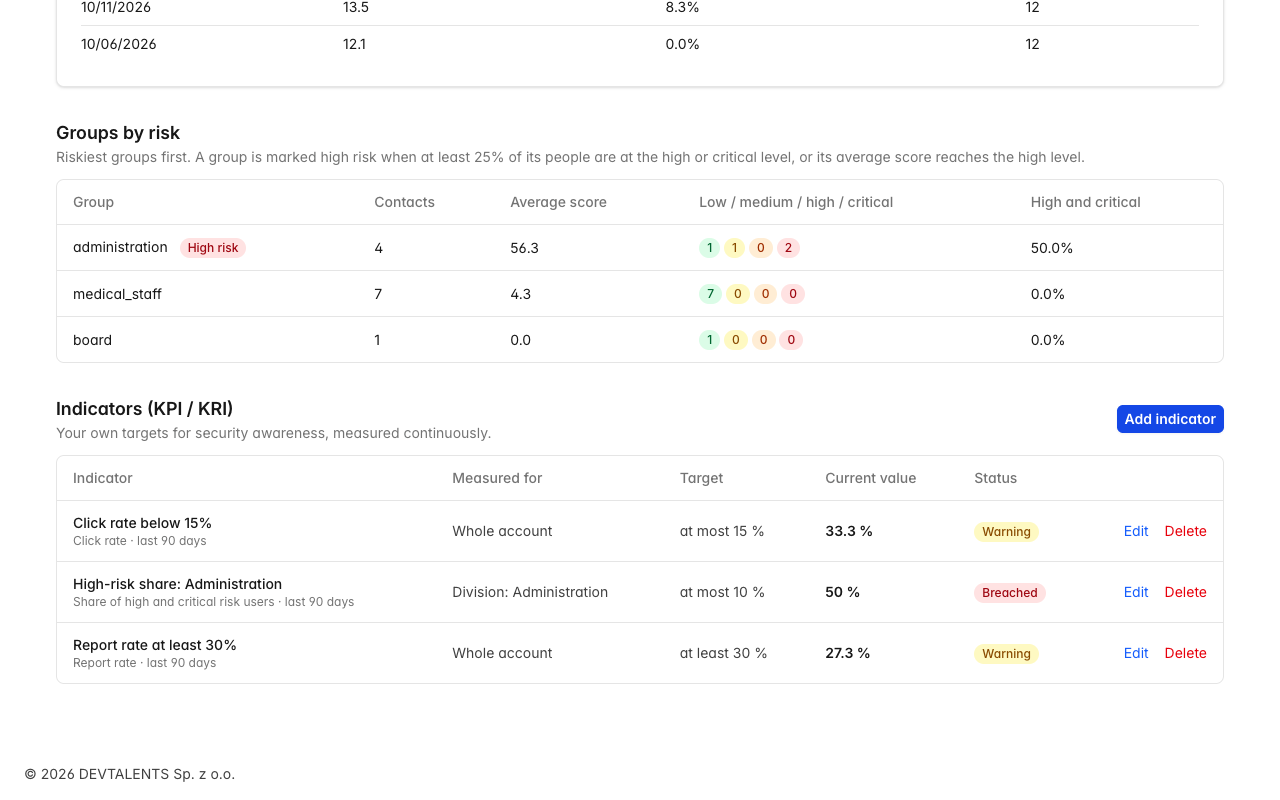
Section titled “36.3 Indicators (KPI / KRI)”An indicator is your own target for security awareness. Administrators add one with Risk → Add indicator:
- Name it, for example “Finance click rate”.
- Pick a metric and the period it looks at (90 days by default).
- Choose who it is measured for: the whole account, one group, or one value of a contact attribute (for example Department = Finance).
- Set the direction (at most / at least), the target and an optional warning tolerance.
| Metric | What it measures |
|---|---|
| Click rate | Share of simulation deliveries in which the recipient clicked |
| Data-entry rate | Share of simulation deliveries in which the recipient submitted data |
| Report rate | Share of simulation deliveries the recipient reported |
| Training completion rate | Share of training invitations that were completed |
| Average risk score | Mean risk score of the measured contacts |
| Share of high and critical risk users | Percentage of measured contacts at the high or critical level |
| Repeat-offender rate | Share of targeted contacts who clicked or submitted data in two or more simulations |
| Median time to report | Median minutes between sending a simulation and its report |
The Risk page shows each indicator’s current value and status:
- Met: the value is on the right side of the target.
- Warning: the value misses the target by no more than the tolerance.
- Breached: the value misses the target by more than the tolerance.
- No data: nothing to measure in the period yet.
Every member of the account can see the Risk page. Only administrators can change the scoring settings and the indicators. Deleting a group also deletes the indicators measured for it.
36.4 Risk trend and groups by risk
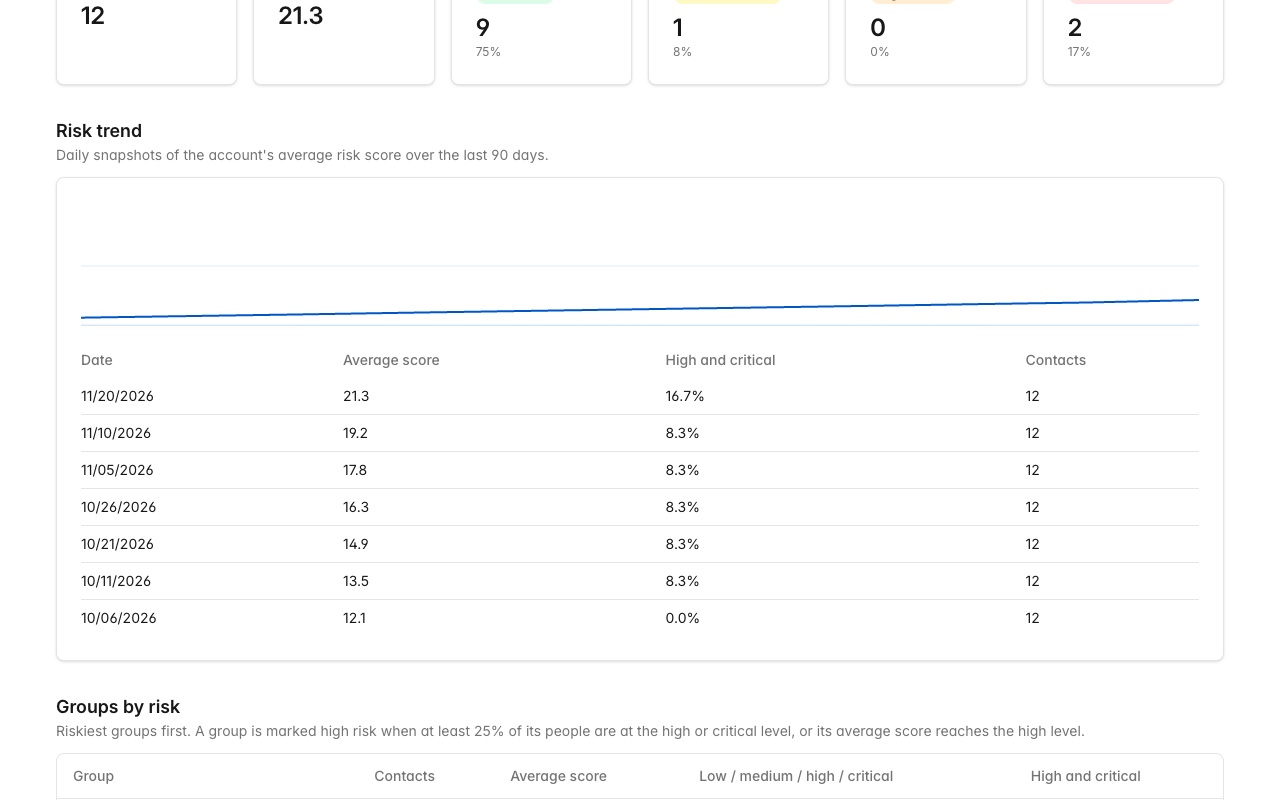
Section titled “36.4 Risk trend and groups by risk”Every night PhishSpot stores a snapshot of the account: the average risk score and the number of people on each level. The Risk trend section of the Risk page draws the average score of the last 90 days and lists the most recent snapshots, so you can see whether risk is going down. The first snapshot appears the morning after this feature reaches your account; earlier days are not reconstructed.
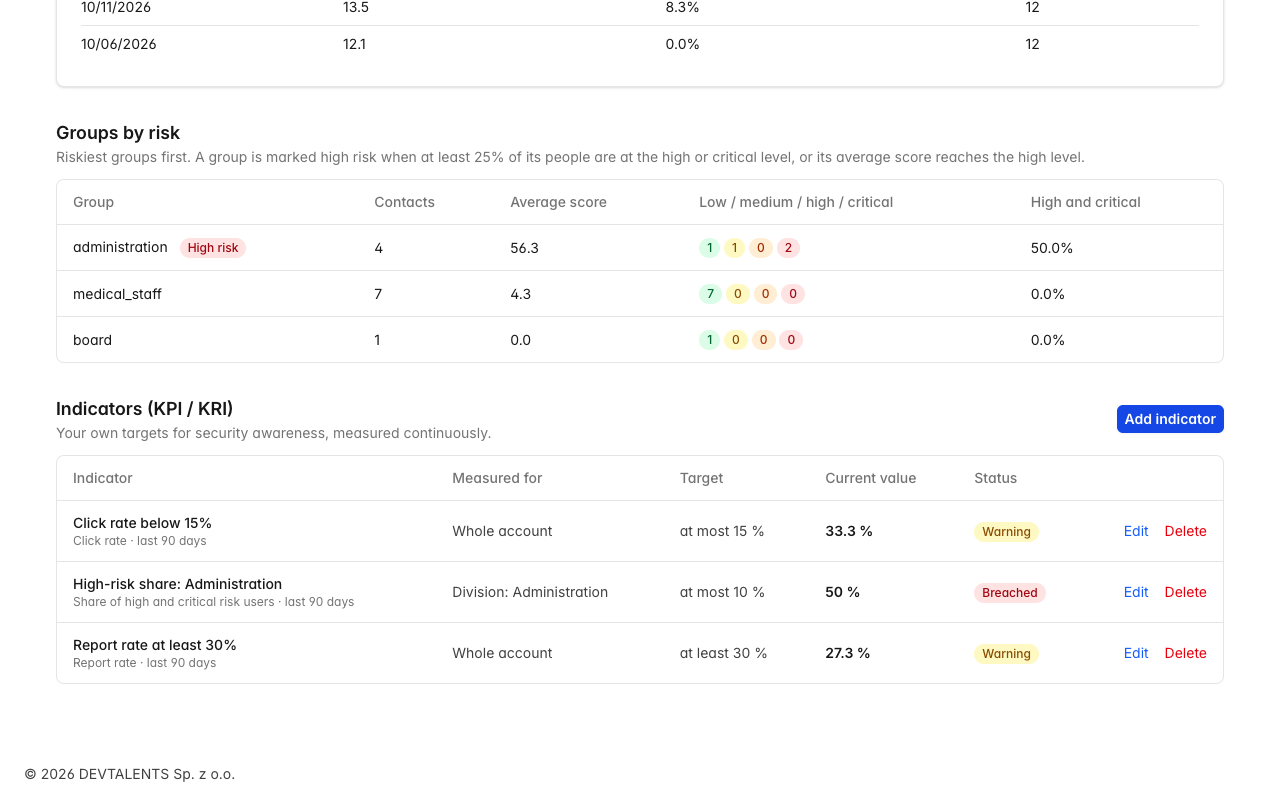
The same snapshot is stored for every group that has contacts, and every change of a person’s score is recorded with the date, the new score and the level.
Groups by risk lists your groups with their number of contacts, average score and the number of people on each level, riskiest first. A group is marked High risk when at least 25% of its people are on the high or critical level, or when its average score reaches the high level.
36.5 Automatic education
Section titled “36.5 Automatic education”An account administrator can let PhishSpot invite people to a training when their risk level gets too high. Open Risk → Automatic education and choose:
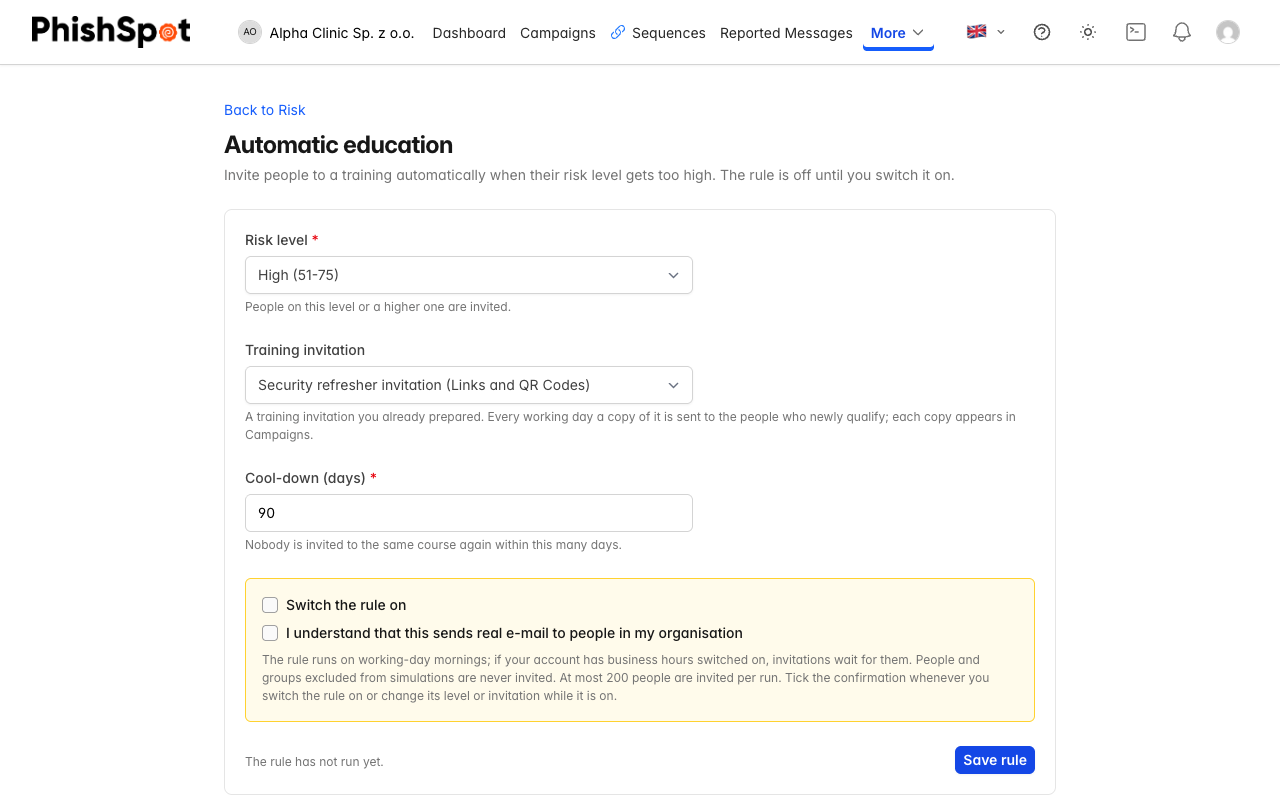
- the risk level: people on this level or a higher one are invited (medium, high or critical);
- the training invitation: a training invitation you already prepared in Campaigns (course, e-mail text and sender). A copy of it is sent to the people who qualify, and each copy appears in Campaigns with its own results;
- the cool-down in days: nobody is invited to the same course again within this time, whether the earlier invitation was automatic or sent by you.
The rule is off by default. It sends real e-mail, so switching it on requires ticking a confirmation; the same confirmation is needed when you change the level or the invitation while the rule is on. When you switch it on, everyone who is already on the chosen level is invited at the next run.
The rule runs on working-day mornings. If your account has business hours switched on, invitations wait for them. People and groups excluded from simulations are never invited, your sending-domain rules apply as for any campaign, and one run invites at most 200 people (the rest follow on the next working days). Switch the rule off at any time to stop further invitations.
36.6 API and MCP
Section titled “36.6 API and MCP”The overview (including the groups by risk), the scoring settings, the indicators and the automatic education rule (/api/v1/risk_education_rule) are available through the API (Chapter 27). AI clients can read the rule in get_risk_overview but cannot change it. GET /api/v1/risk/history returns the daily snapshots of the account (days, up to 730), of one group (filter[group_id]) or the score changes of one person (filter[contact_id]). The overview with the groups and the 90-day account trend is also available to AI clients through the get_risk_overview tool (Chapter 29).