

Microsoft Teams Notifications
PhishSpot can post short notices to one Microsoft Teams channel per account. E-mail notifications keep working as before; Teams is an additional channel.
Messages contain titles and overall numbers only. They never include names, e-mail addresses or anyone’s individual result, so the channel can be visible to the whole team.
34.1 Connect a channel
Section titled “34.1 Connect a channel”You need to be an account administrator.
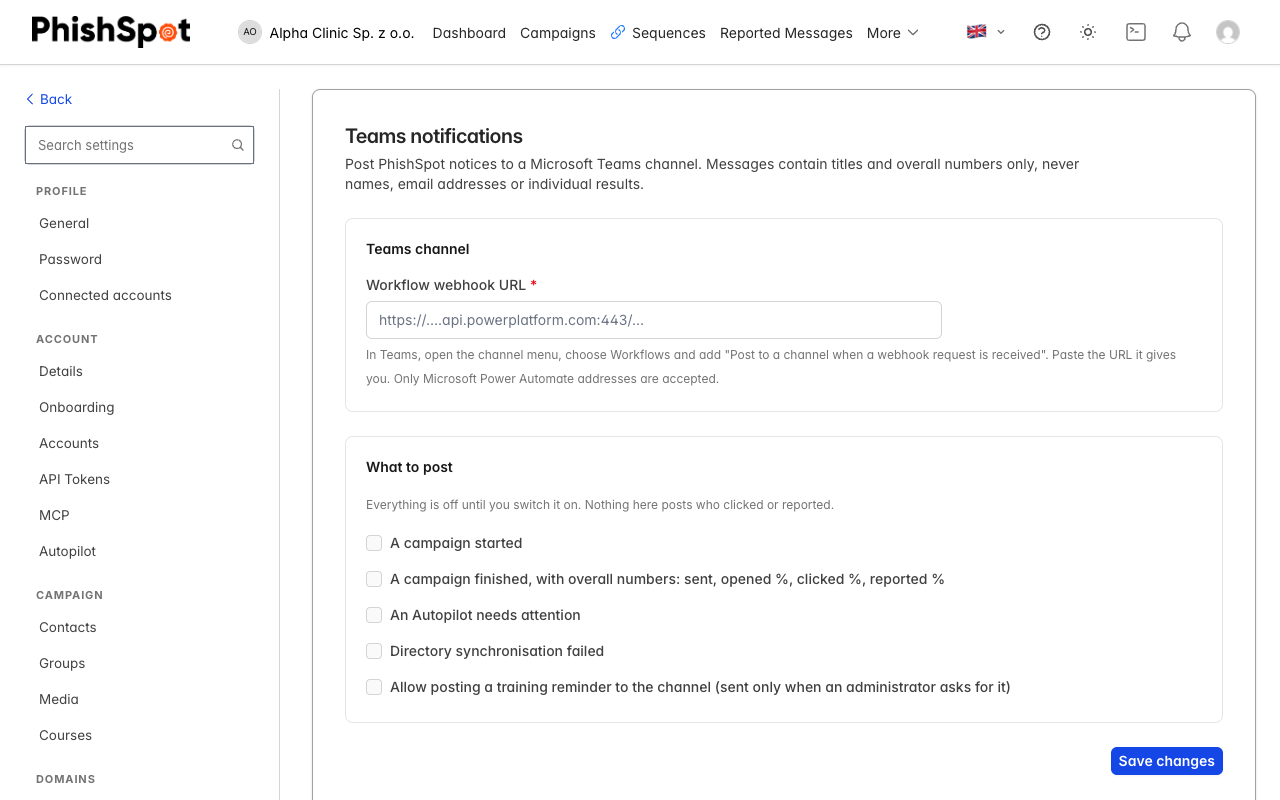
- In Microsoft Teams, open the menu (…) next to the channel and choose Workflows.
- Add the workflow Post to a channel when a webhook request is received (in some tenants it is named Send webhook alerts to a channel) and save it.
- Copy the webhook URL that Teams shows.
- In PhishSpot, open Settings → Teams notifications, paste the URL into Workflow webhook URL and save.
- Choose Send test message. A short test card should appear in the channel.
PhishSpot accepts only HTTPS addresses of Microsoft Power Automate workflows. After saving, the URL is never shown again; the page displays only the Microsoft host it points to. Treat the URL like a password: anyone who has it can post to your channel.
To move to another channel, paste a new URL. To stop everything, tick Disconnect the channel and switch all notifications off and save.
34.2 Choose what to post
Section titled “34.2 Choose what to post”Every notification is off until you switch it on.
| Notification | What appears in the channel |
|---|---|
| A campaign started | Campaign name and the number of recipients. |
| A campaign finished | Campaign name, number sent and the overall opened, clicked and reported percentages. |
| An Autopilot needs attention | The Autopilot’s name and a request to review it in PhishSpot. |
| Directory synchronisation failed | A notice that contacts were not updated. |
| Training reminder | The training title and a reminder to open it from the invitation e-mail. Posted only when an administrator asks for it. |
34.3 Post a training reminder
Section titled “34.3 Post a training reminder”Switch on Allow posting a training reminder to the channel and save. A Training reminder section appears. Choose a running campaign that has a course and select Post reminder.
The reminder is general: it names no one and contains no link, because each person’s training link is personal. People open the training from their own invitation e-mail.
34.4 If a message is not delivered
Section titled “34.4 If a message is not delivered”PhishSpot retries for a short time when Teams is busy. If delivery still fails, a red notice with the time and an error code appears at the top of Settings → Teams notifications. The usual cause is a workflow that was deleted or switched off, or whose owner left the organisation. Restore or recreate the workflow, paste the new URL if it changed, and send a test message.
Limits: Teams accepts about four webhook requests per second. Only Microsoft’s commercial cloud is supported.
34.5 API and MCP
Section titled “34.5 API and MCP”The same settings are available through the API (/api/v1/teams_notifications, see Chapter 27) and the MCP tool manage_teams_notifications (Chapter 29). The webhook URL can be set in the application or through the API, not through MCP.